
This SOP explains how to locate uncategorized items in the portal and move them into the correct catalog. Following these steps ensures items are properly organized and no longer appear in the
uncategorized list.
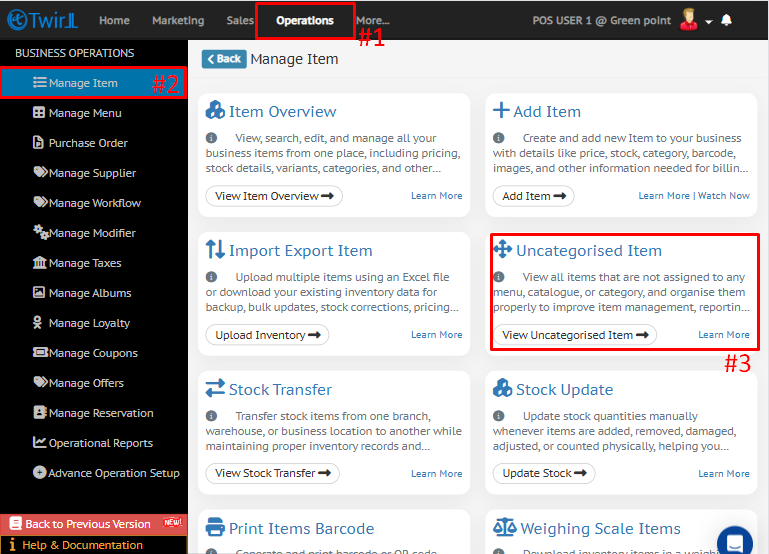
Navigate to the Uncategorized Items section
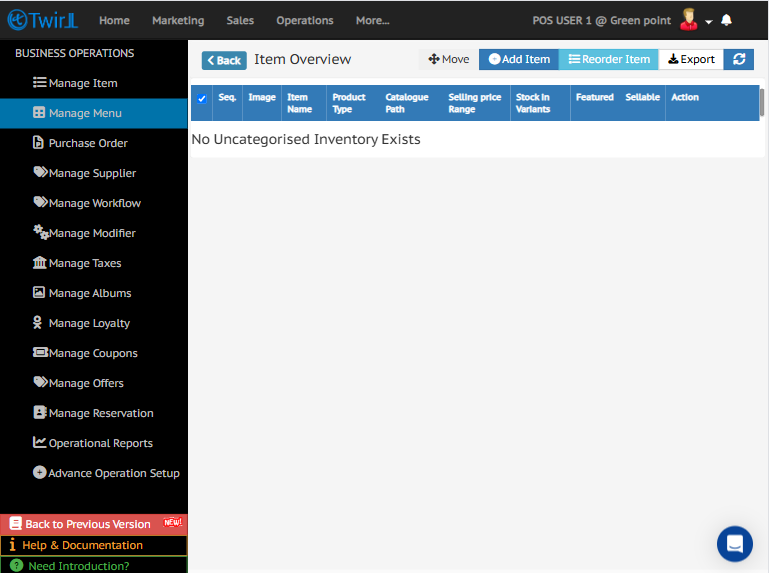
- From the portal, go to Operations.
- Click Manage Item.
- Select Uncategorized Item to open the list of items that are not currently assigned to a catalog.
Select the items to categorize
- Review the list of uncategorized items.
- Tick the checkbox next to each item you want to categorize.
- Confirm that all required items are selected before proceeding.
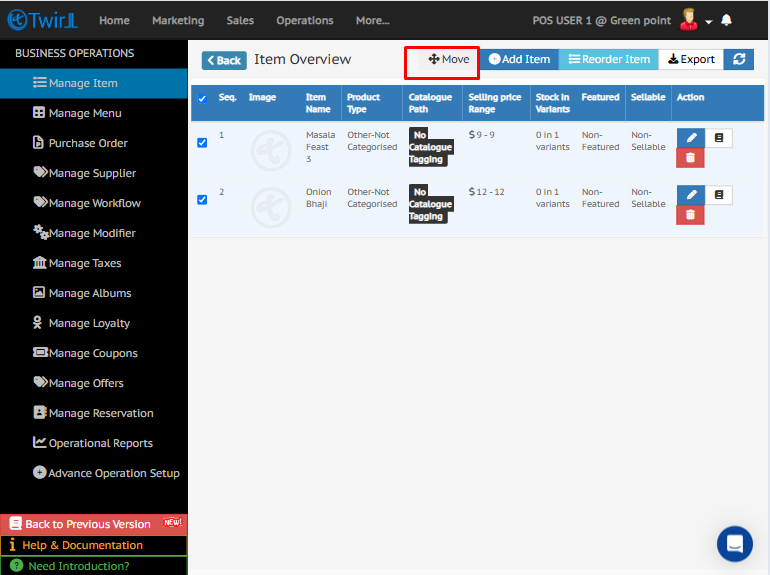
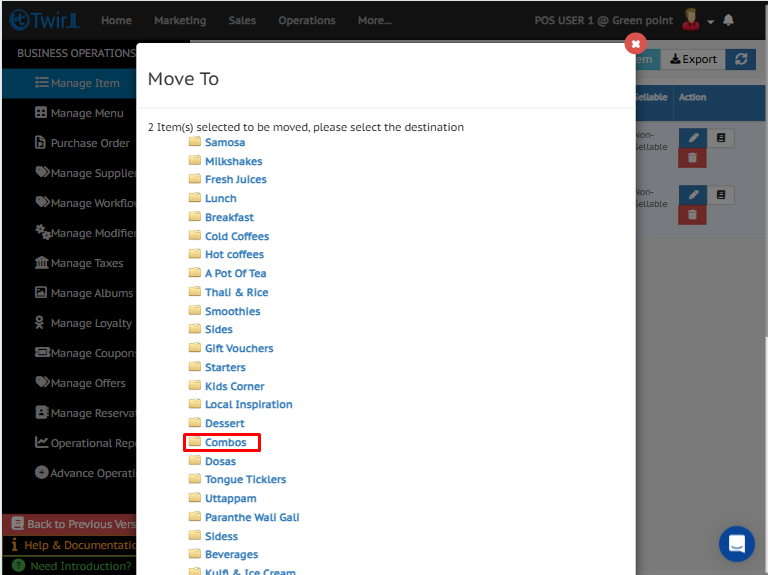
Move the selected items to a catalog
- Click the Move button at the top of the page.
- In the Move window, choose the appropriate catalog destination
for the selected items. - Verify that the destination catalog is correct before continuing.
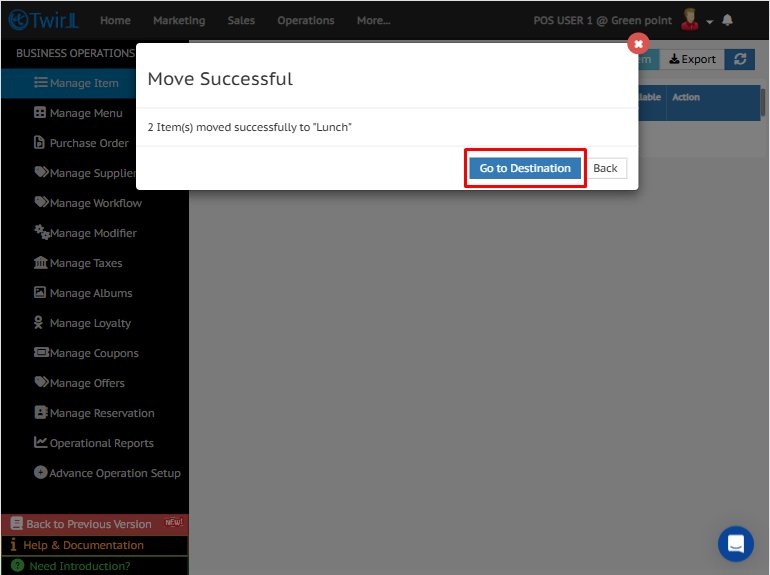
Confirm the move to the destination catalog
- Click Go to Destination to complete the transfer.
- Confirm that the selected items have been moved successfully.
- Check that the items no longer appear in the uncategorized items
list.
More related documents
How to disable catalog from location
How to assign category to printer from POS
How to add new item at business from POS
How to add new items from POS
How to manage catalog from POS
Find more FAQs about POS