
Process a Refund and Cancel an Order in the POS System
This explains how to locate an order in the POS system, process a refund, and then cancel the order correctly. Following these steps ensures the payment status and order status are updated acurately in the system.
1. Open the Order from Order History
- Navigate to the Order History section in the POS system. Open the required order you need to refund and cancel. Review the order details before making any changes.
2. Verify Order and Payment Details
- Confirm the payment status is correct. Check the order amount to ensure the refund is being processed for the correct value. Make sure you are working on the correct customer order.
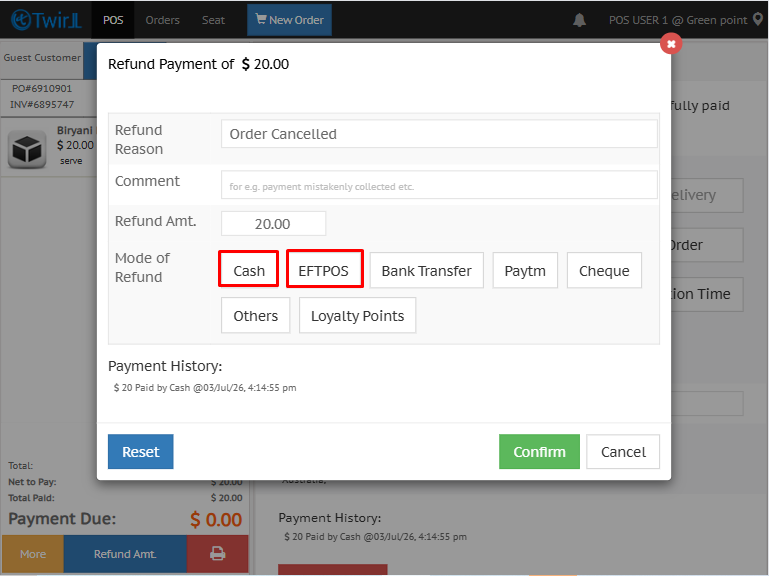
- Click the Refund Amount option at the bottom of the screen.
3. Initiate Refund
- Enter the required comment in the comment section.
- Select the appropriate payment mode(Cash/ EFTPOS)
- Enter the date and time if prompted.
- Confirm to process the refund.
4. Cancel the Order After Refund Completion
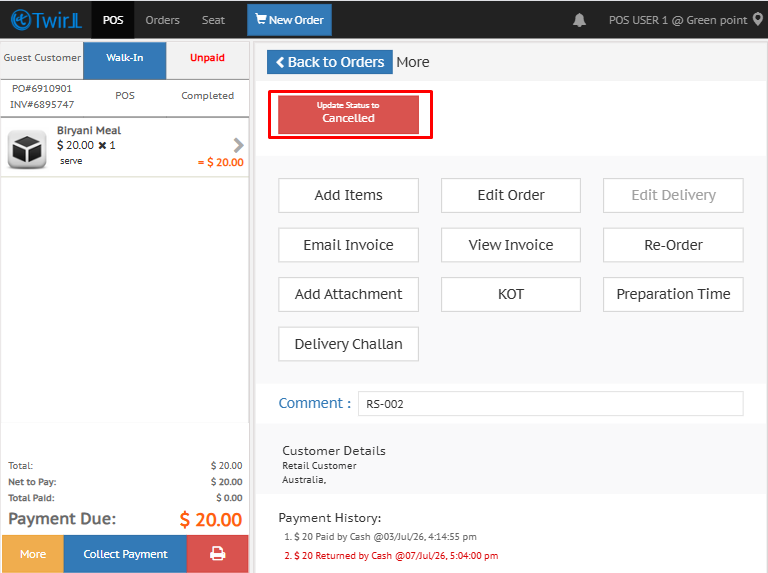
- After the refund is successfully processed, click the option to Update Status to Cancelled.
- Select the appropriate reason for cancellation.
- Confirm the cancellation to complete the process.
5. Confirm Status Updates
- Verify that the payment status has been updated correctly.
- Verify that the order status now shows as Canceled.
- Ensure both updates are reflected properly in the POS system.
More related documents