
The Cash In / Cash Out module helps businesses maintain accurate cash accountability throughout the day. It allows staff to record any money added to or removed from the cash drawer and track cash totals using the Takings and Cash Flow History sections.
This ensures complete transparency, reduces cashier errors, and supports smooth daily reconciliation.
Who Can Use This Module
This feature is mainly used by:-
- Cashiers
- Supervisors / Managers
- Store Owners
- Anyone managing POS cash drawers
1. Accessing Cash In / Cash Out
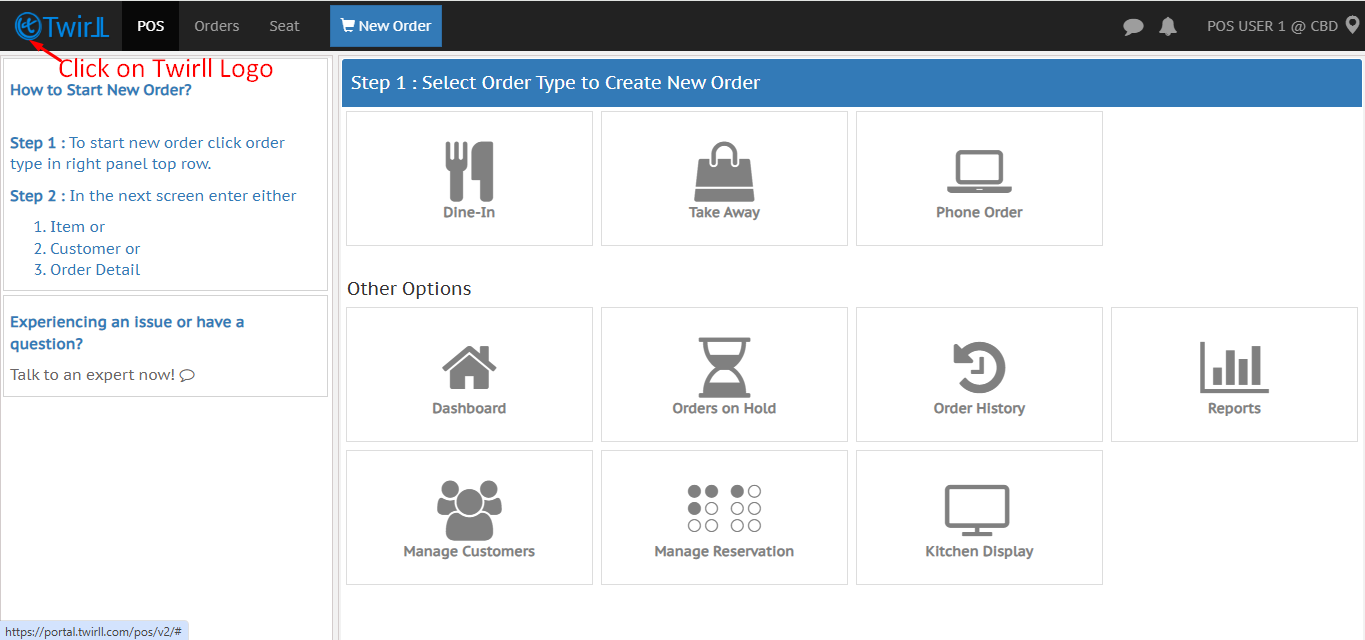
Step 1: Go to your POS device, log in to your Twirll account, and click on the Twirll menu.
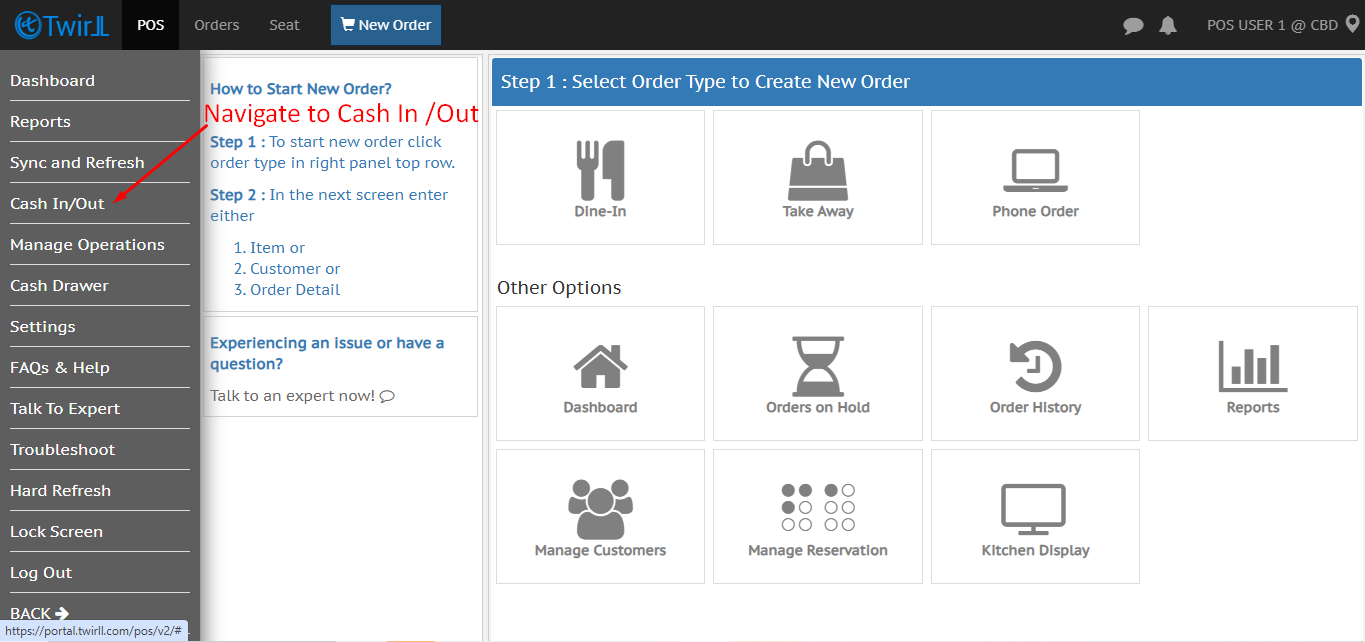
Step 2.From the menu, select Cash In/Out to open the cash management screen.
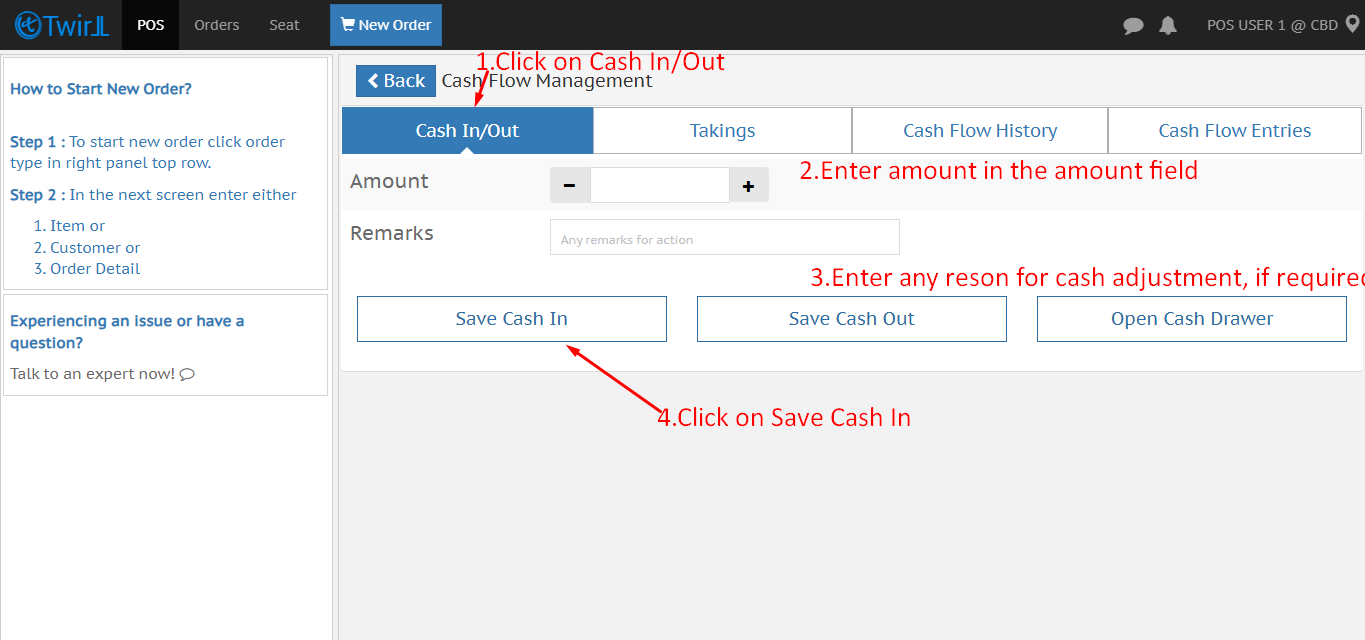
Step 3. Cash In / Cash Out Operations:- The Cash In/Out screen allows you to record physical cash movement in the till.
Cash In (Add Cash)
Use this option when you add money to the cash drawer—for example, providing float/cash change at the start of the shift.
You can:
- Enter the amount added
- Add remarks (optional)
- Save the transaction
- Click “Save Cash In” to confirm.
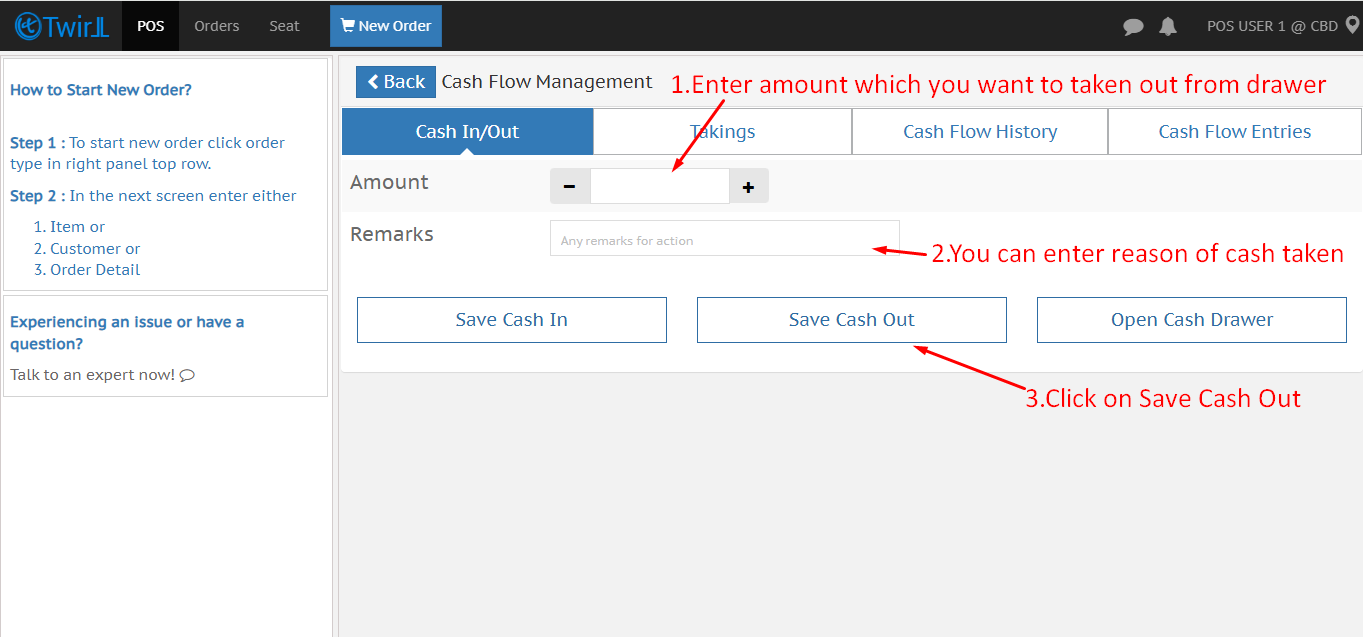
Cash Out (Remove Cash)
Use this option when cash is removed from the drawer—for payouts, expenses, or end-of-day withdrawal.
You can:
- Enter the amount
- Add remarks
- Save the entry
- Click “Save Cash Out” to confirm.
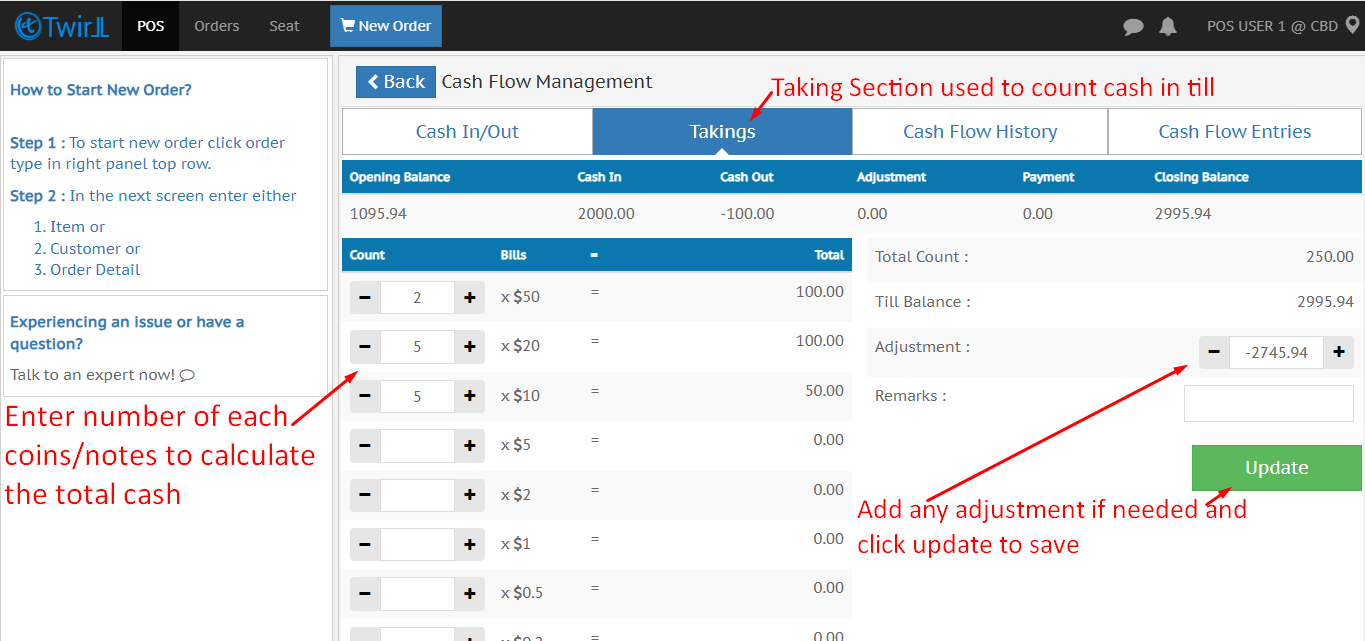
Step 4. Takings — Counting Cash(End of the Day/ Shift closing)
At the End of Day or Shift
- Go to Taking
- Count all cash in drawer
- Enter quantity of each currency denomination (notes/coins)
- System auto-calculate total cash
- Once the counting is done, click Update to save the cash summary.
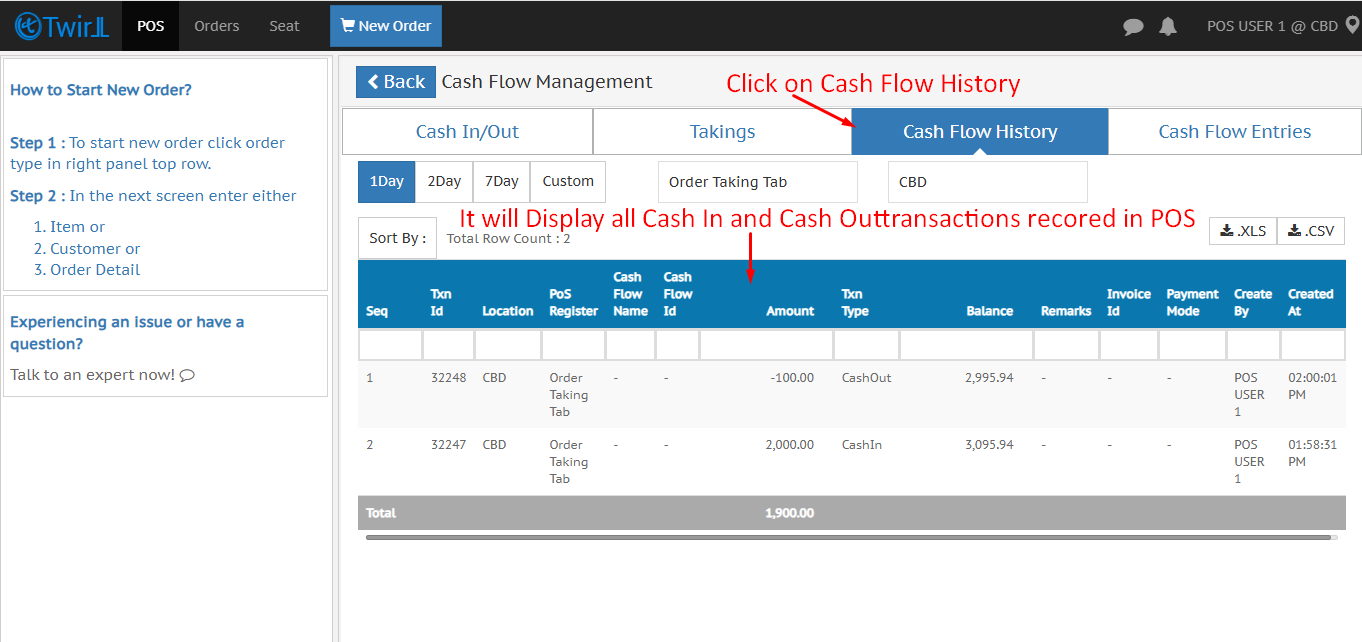
Step 5. Cash Flow History:- This section shows all Cash In and Cash Out transactions recorded on the POS. Users can filter records by date (1 Day, 2 Day, 7 Day, or Custom)
Useful for audits, daily reconciliation, and tracking discrepancies
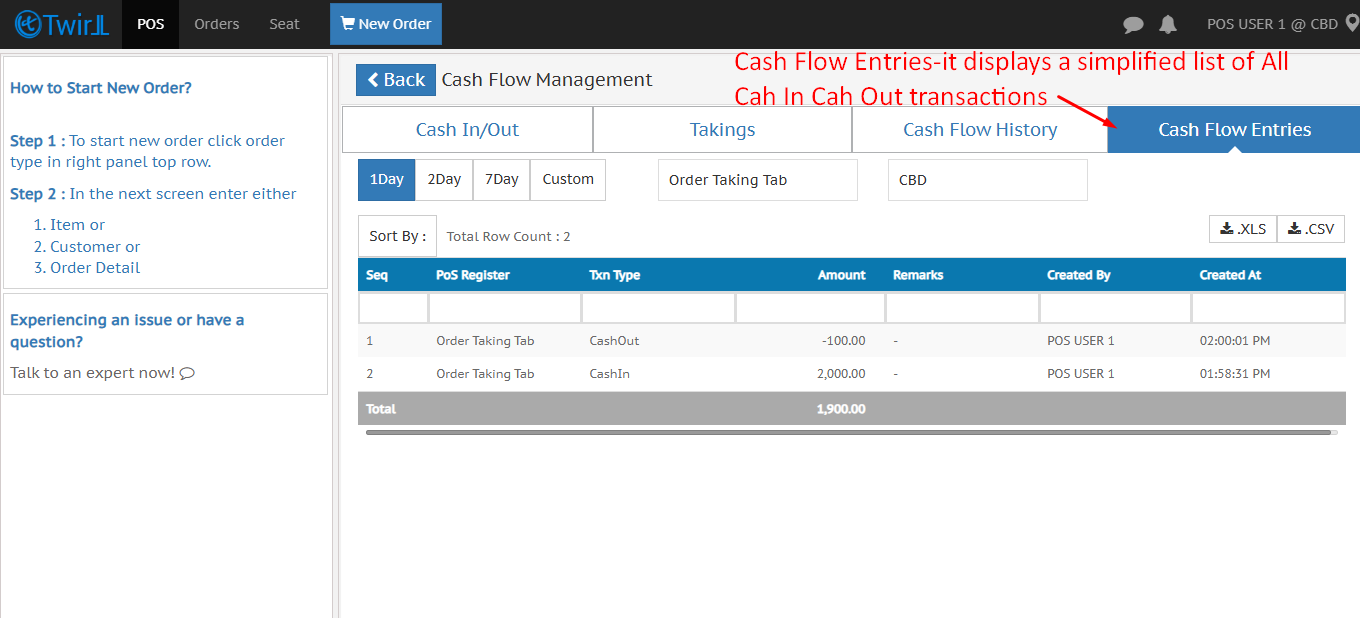
Step 6.The Cash Flow Entries Shows a simplified, easy-to-view list of recent cash movements.. You can filter the entries by date (1 Day, 2 Day, 7 Day, Custom)
Ideal for quick review or shift-level monitoring.
More related documents
How to create Catalog from POS
How to modify item detail of running order
How to edit save order item
How to add new item at business from POS
How to add new items from POS
How to add advanced item from POS
Find more FAQs about POS