
Update and Verify a User’s PIN From Portal
This explains how to update a user’s PIN in the admin portal and verify that the new PIN works in the POS system. Follow these steps to ensure the correct user is updated and the PIN change is confirmed successfully.
1. Open the Admin Portal and Access Manage Users
- Log in to the admin portal.
- Navigate to Admin.Click Manage Users to view the list of users/employees.
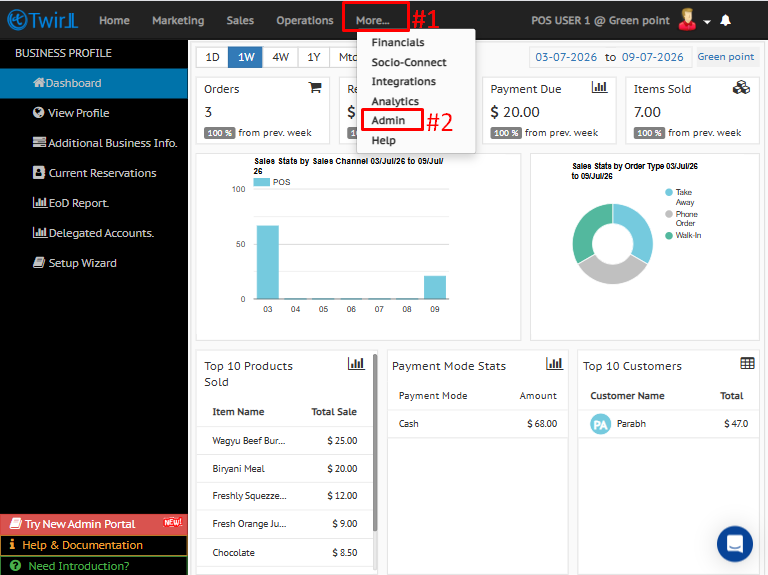
2. Select the User and Update the PIN
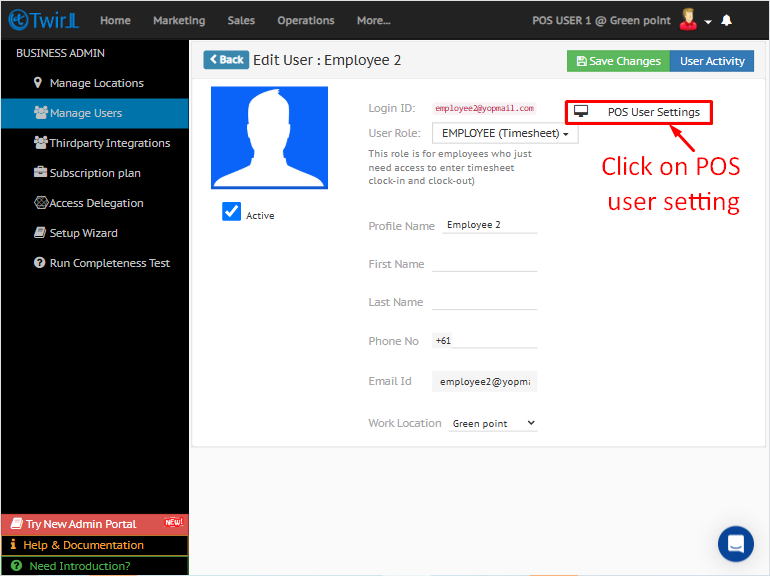
- Locate and select the user or employee whose PIN needs to be changed.
- Open the POS User Settings for that user.
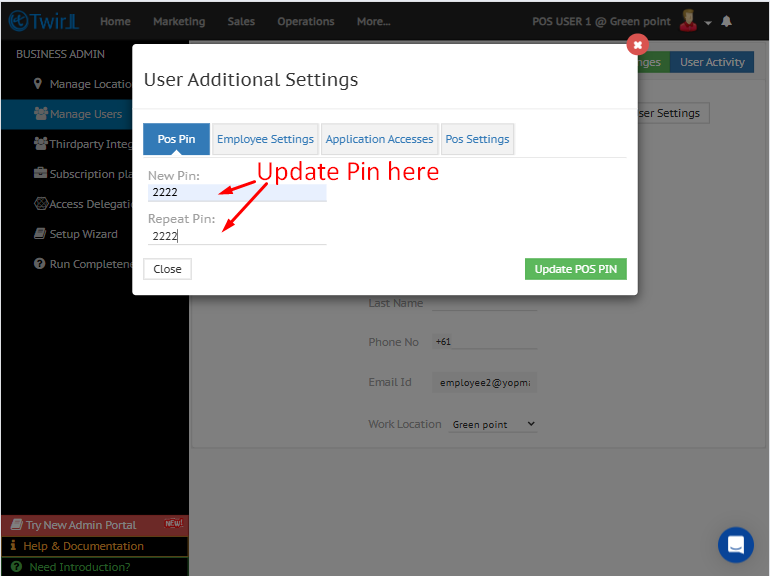
- Enter the new PIN in the PIN field.
- Click Save or Apply to store the new PIN.
3. Verify the Updated PIN in the POS System
- Go to the POS screen..
- Enter the updated PIN for the selected user ID.
- Click Done to verify that the PIN works successfully.
How to enable timesheet
How to create new user
Deactivate a User from Twirll Admin Portal
Activate a User from Twirll Admin Portal