Customer Login and Registration for Product Enquiry
Existing Customer Login
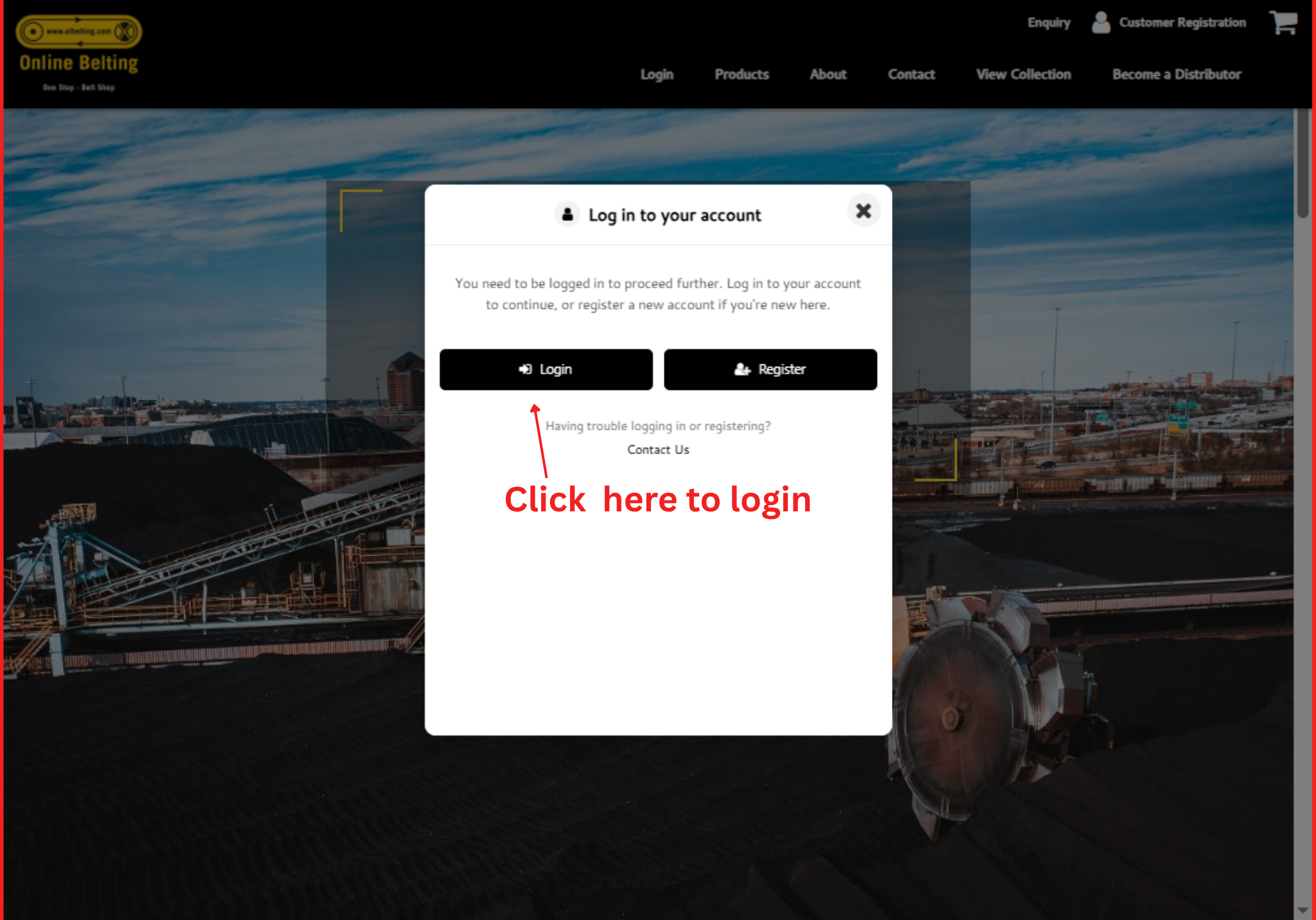
- Open the website. Click on any product you wish to enquire about. A Login/Register pop-up will appear.
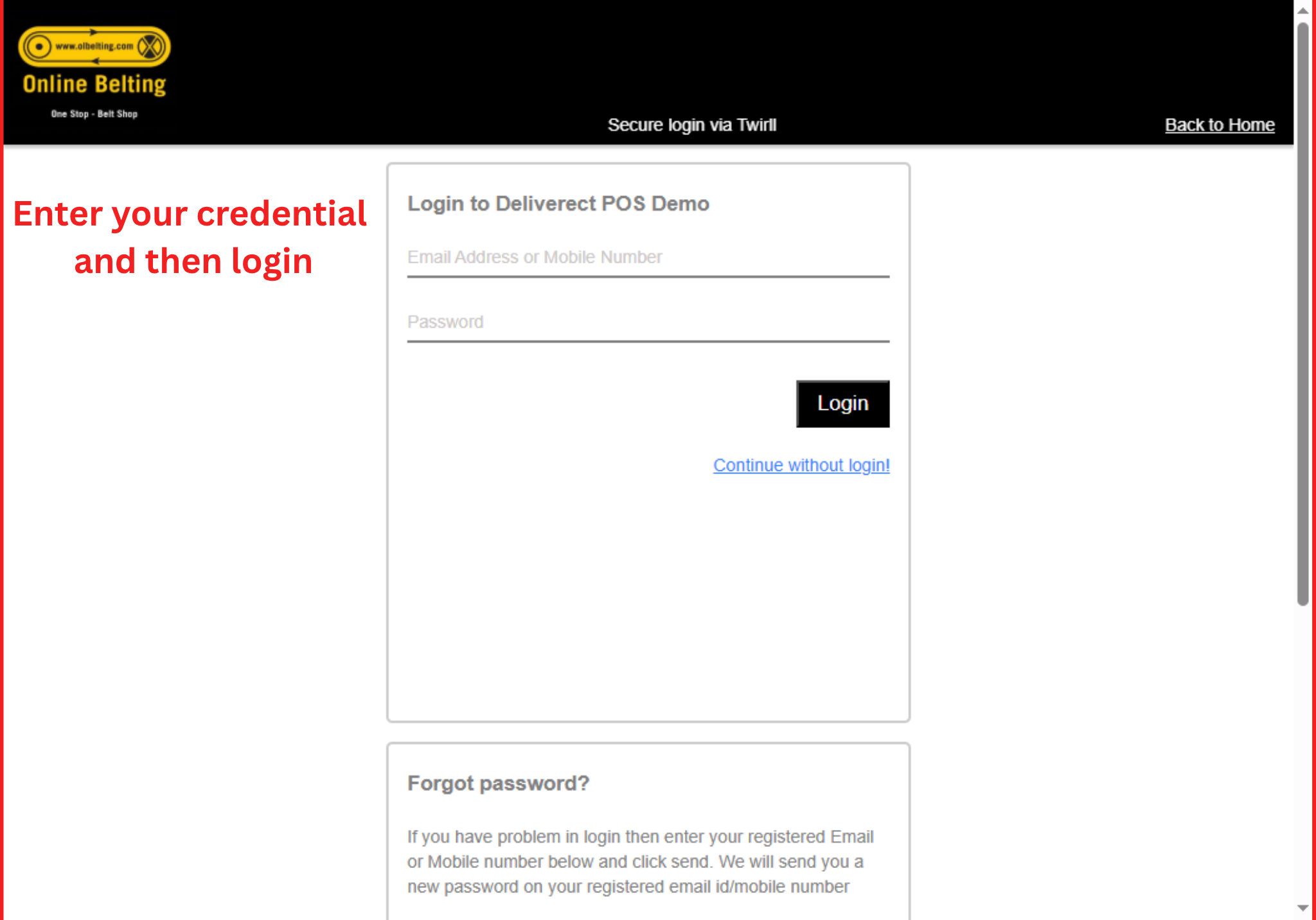
- If you are an existing customer, enter your registered email address and password and Click Login.
- Once logged in, you can view the product details and submit your enquiry.
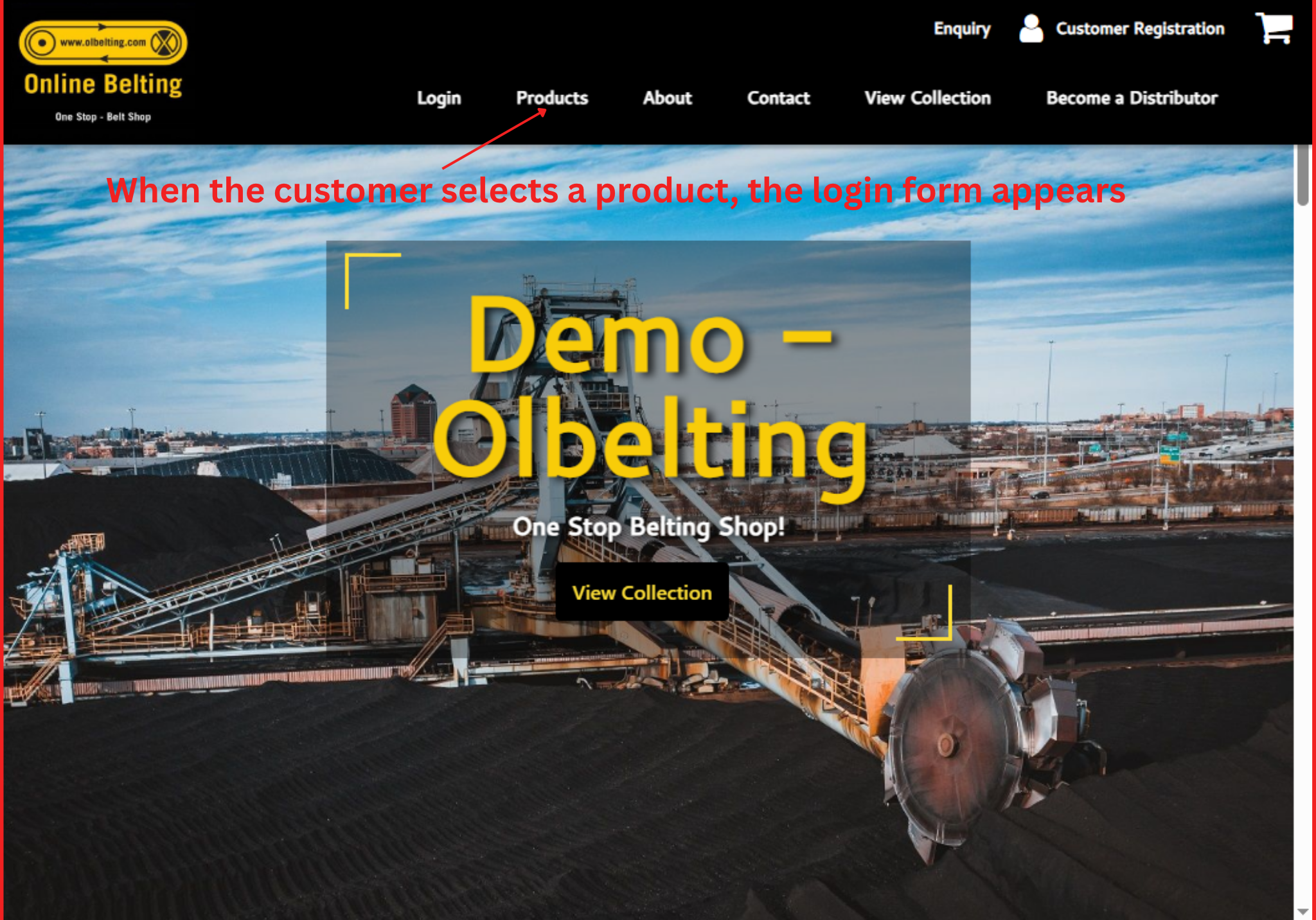
Click here to login
Enter your registered email address and password and Click Login.
New Customer Registration
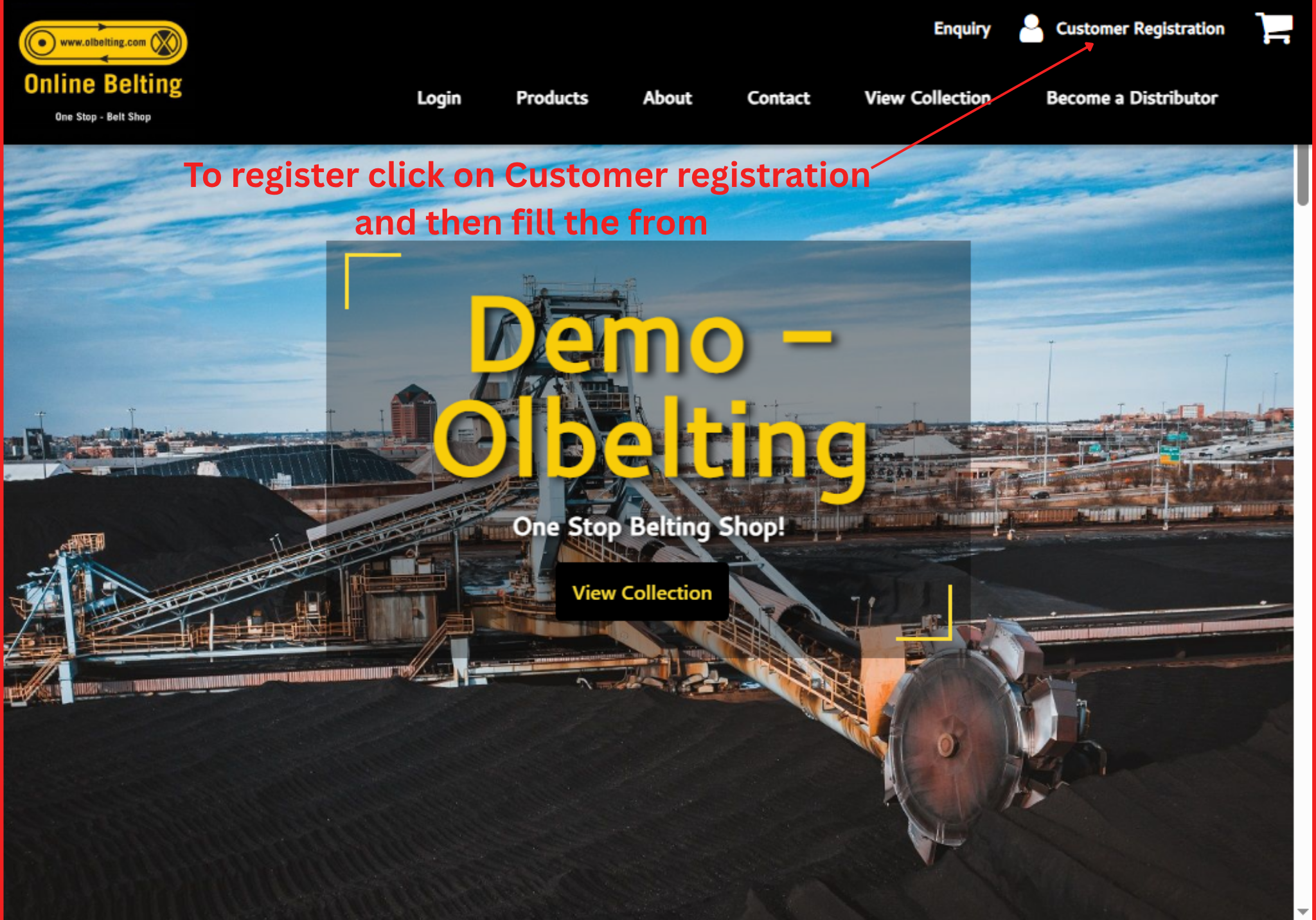
- To Register, Click Customer Registration .
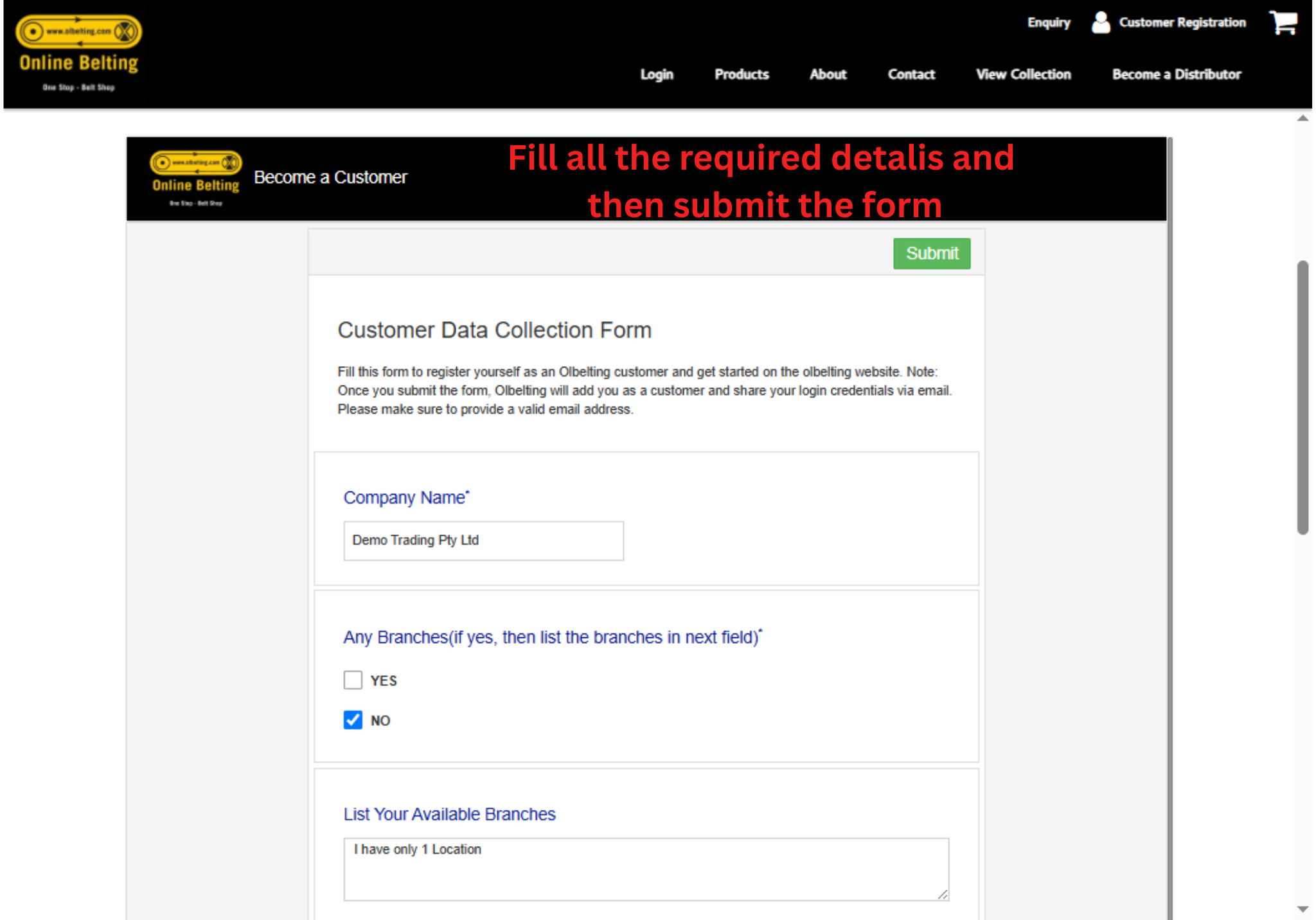
- Complete the registration form with the required information.
- Click Submit/Register.
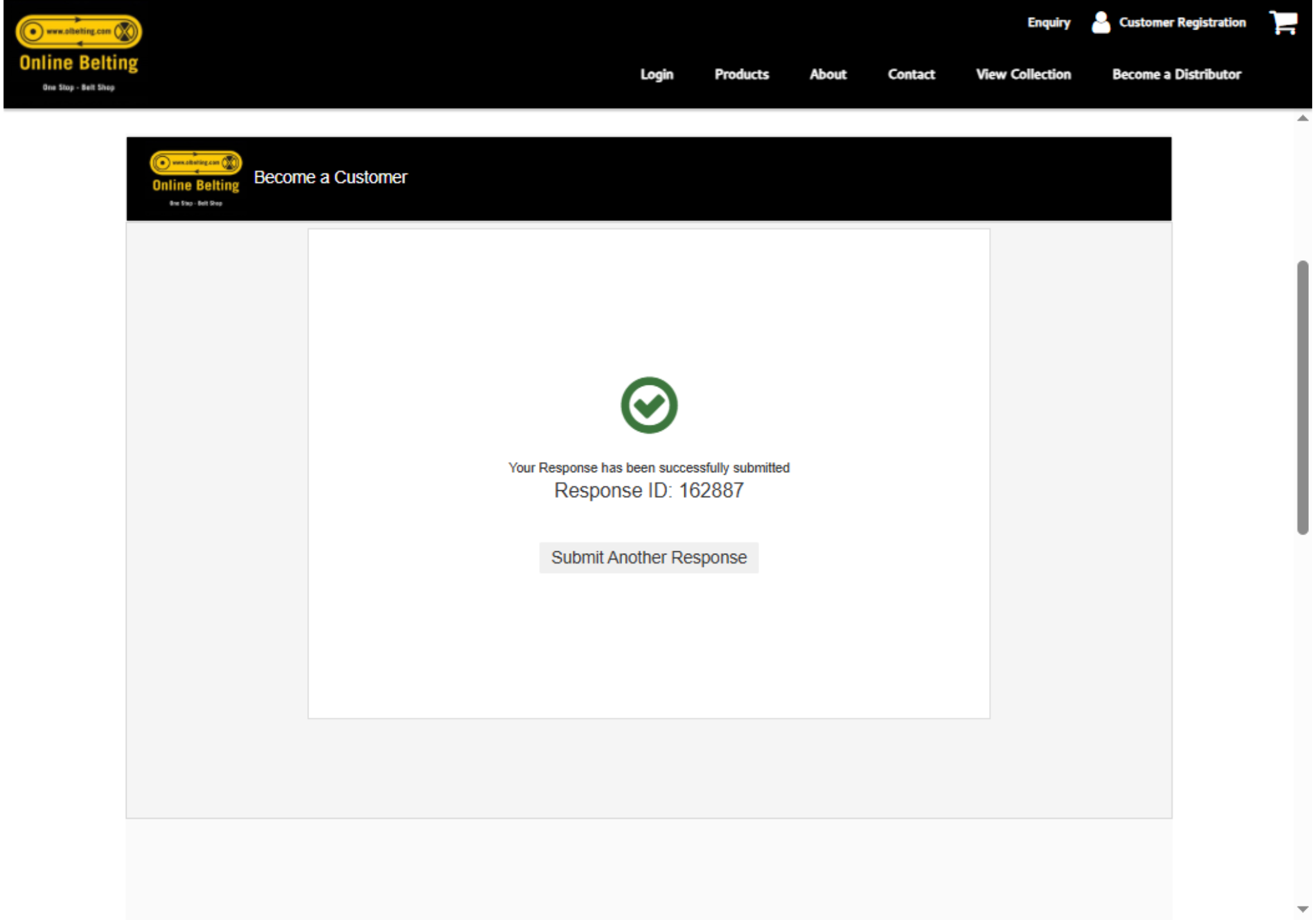
- After successful registration, log in using your registered email address.
- You can now access the products and submit your enquiries.
Fill all the required details and then submit the form
View Customer Registrations and Enquiries
Once customer register, You need to login to twirll portal(Portal.twirll.com),
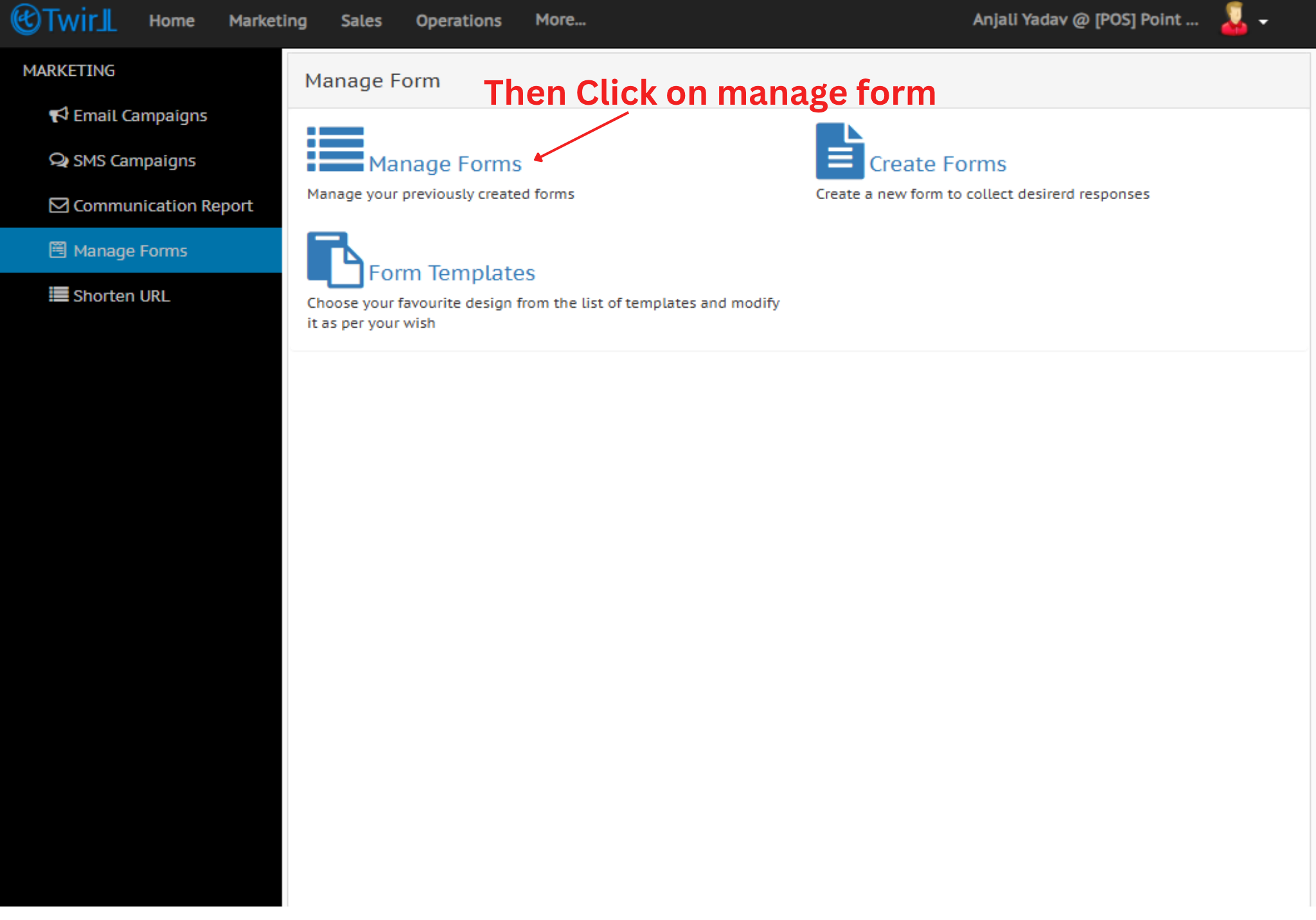
All customer registrations and product enquiries can be viewed from Marketing → Manage Forms in the Twirll Portal. This section displays the customer’s registration details along with their enquiry information.
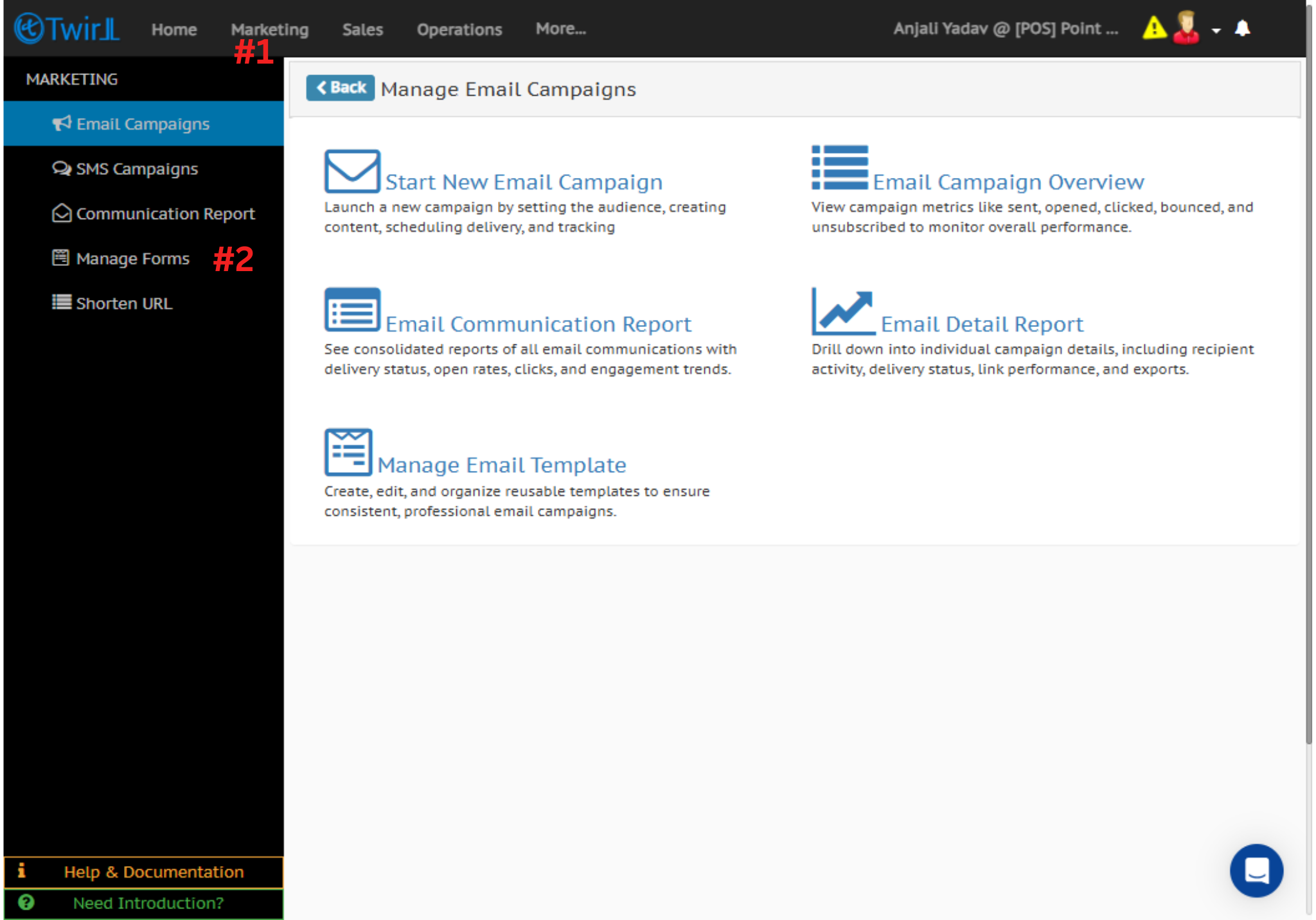
Click on manage form to open customer details.
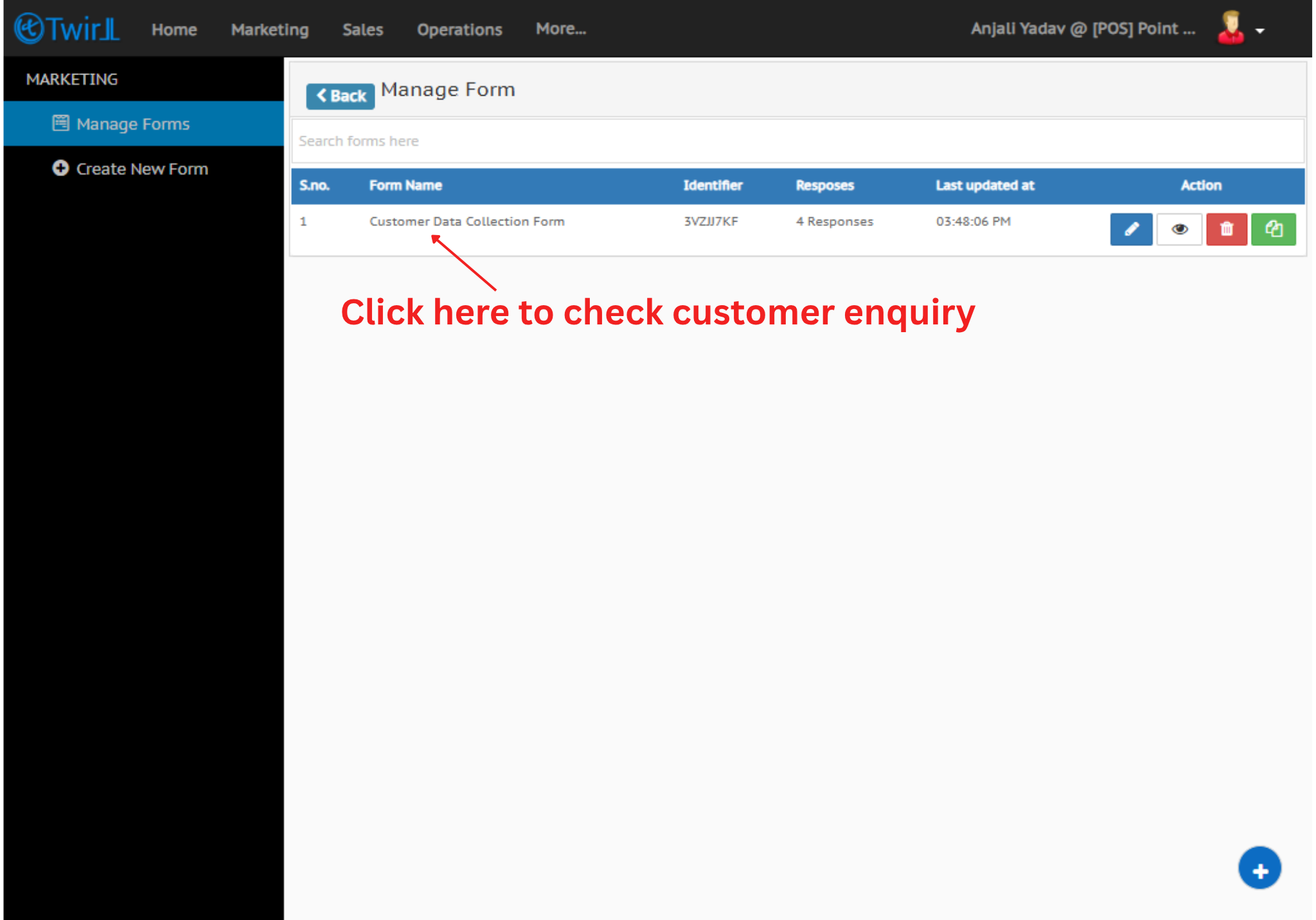
Select the required customer to view their registration details and enquiry information.
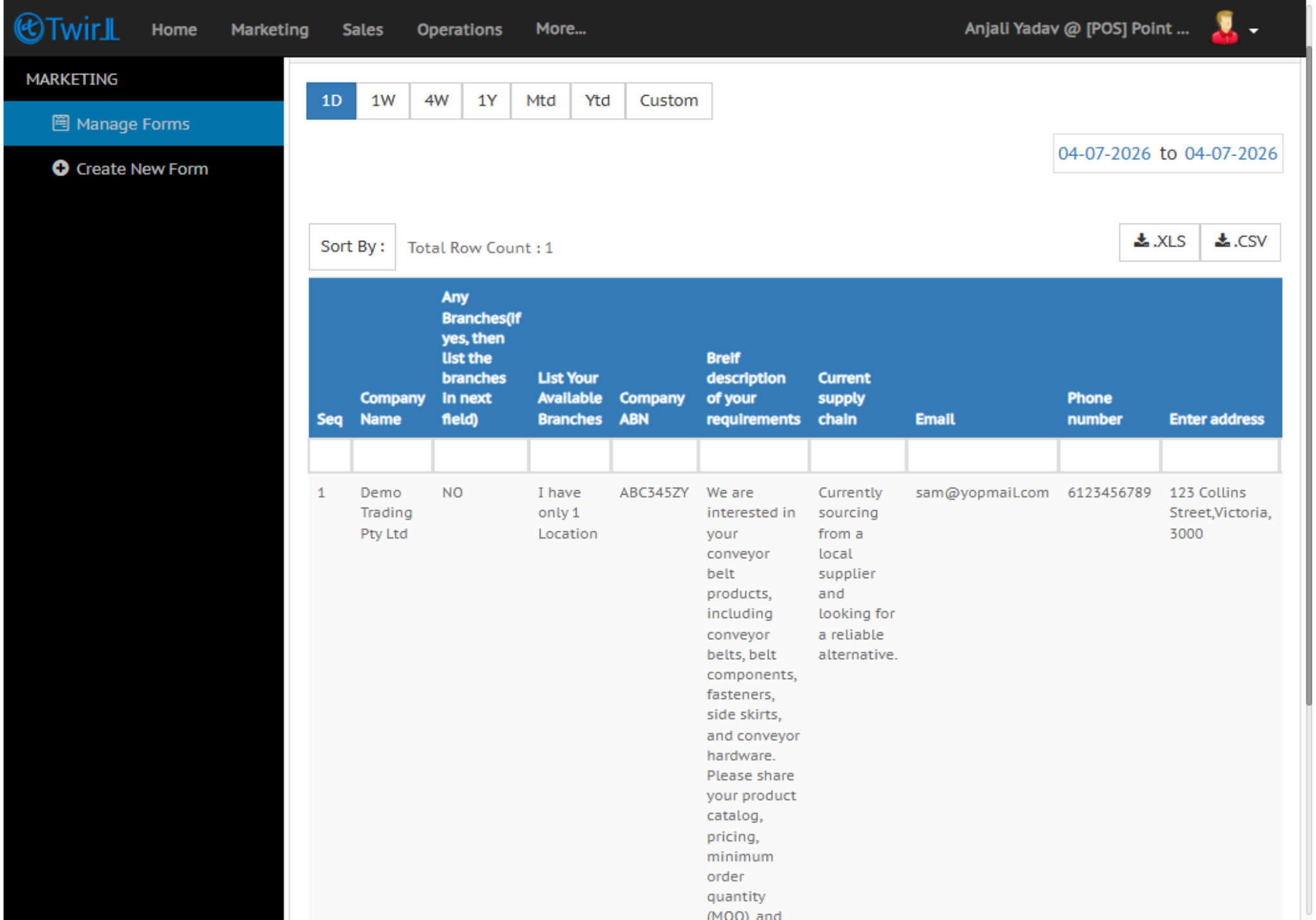
You can view the registered customer details here. After reviewing the information, add the customer to the portal database.
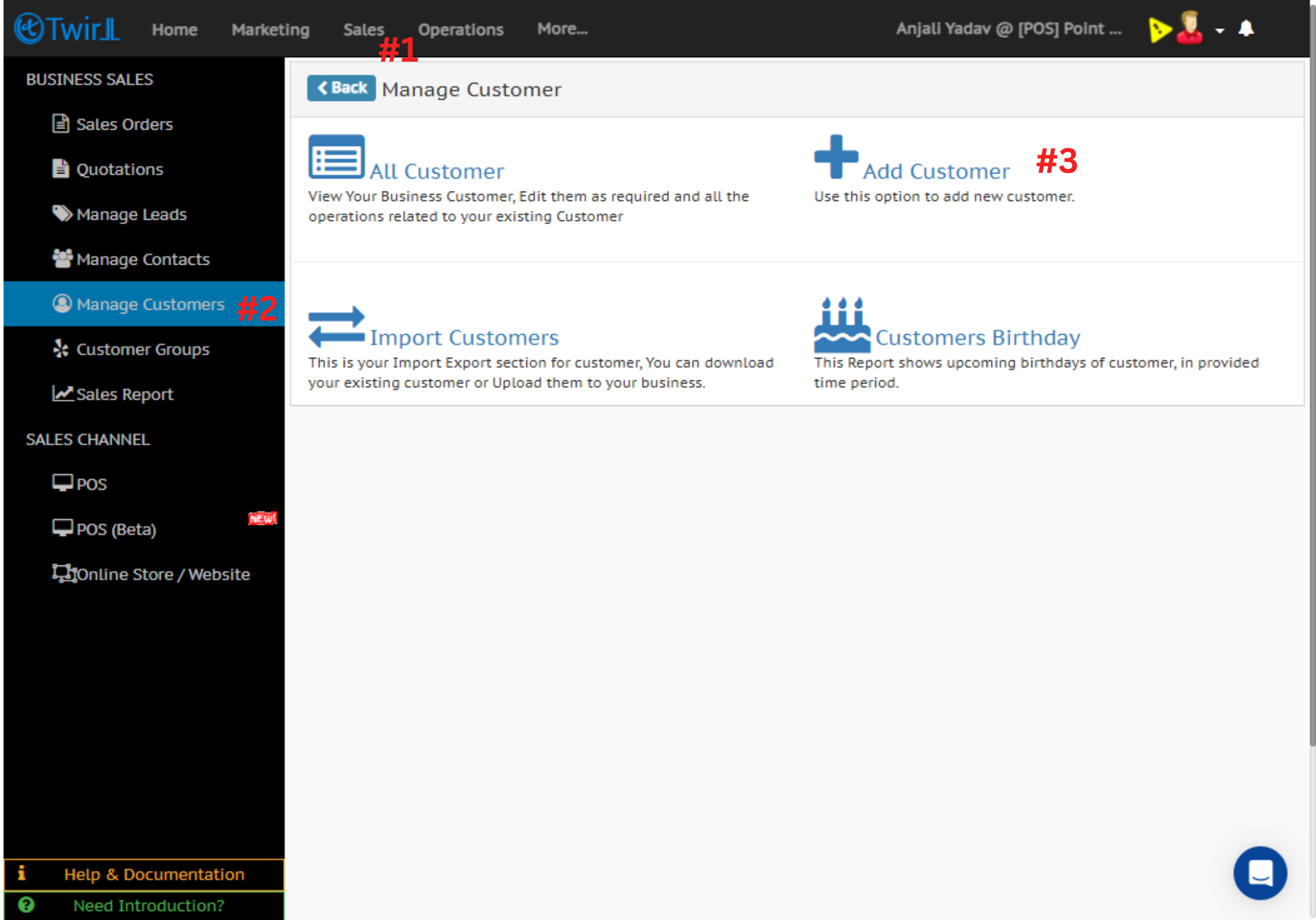
Add the Customer to the Portal
After reviewing the customer’s registration details, add the customer to the portal.
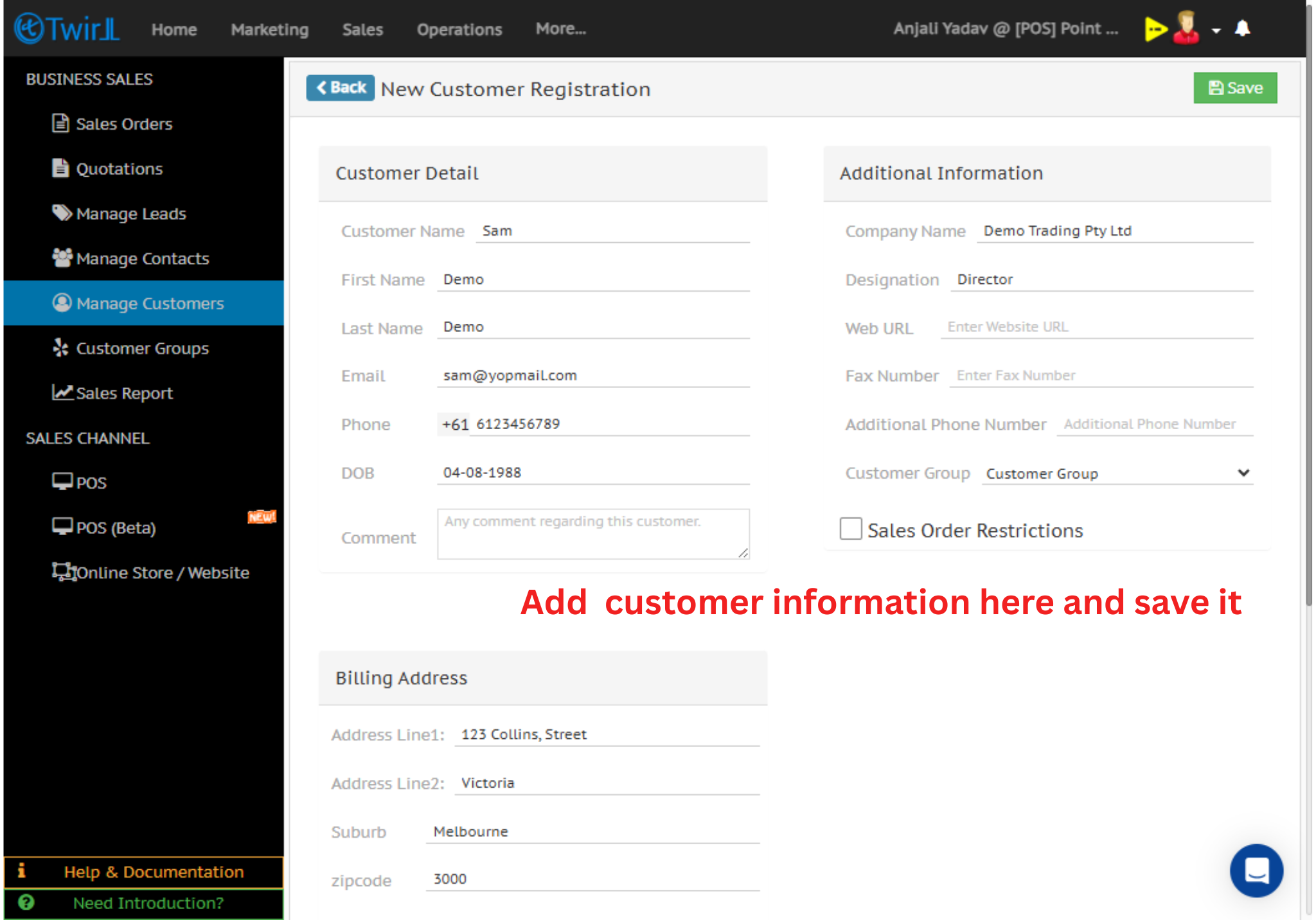
Navigate to Sales → Manage Customers → Add Customer.
Step 1: Click Add Customer.
Step 2: Enter the customer’s details and click Save.
The customer will now be added to your customer database.
Fill all the information regarding the customer and then save it. This customer will save now to your customer list.
Send an Email to the Customer
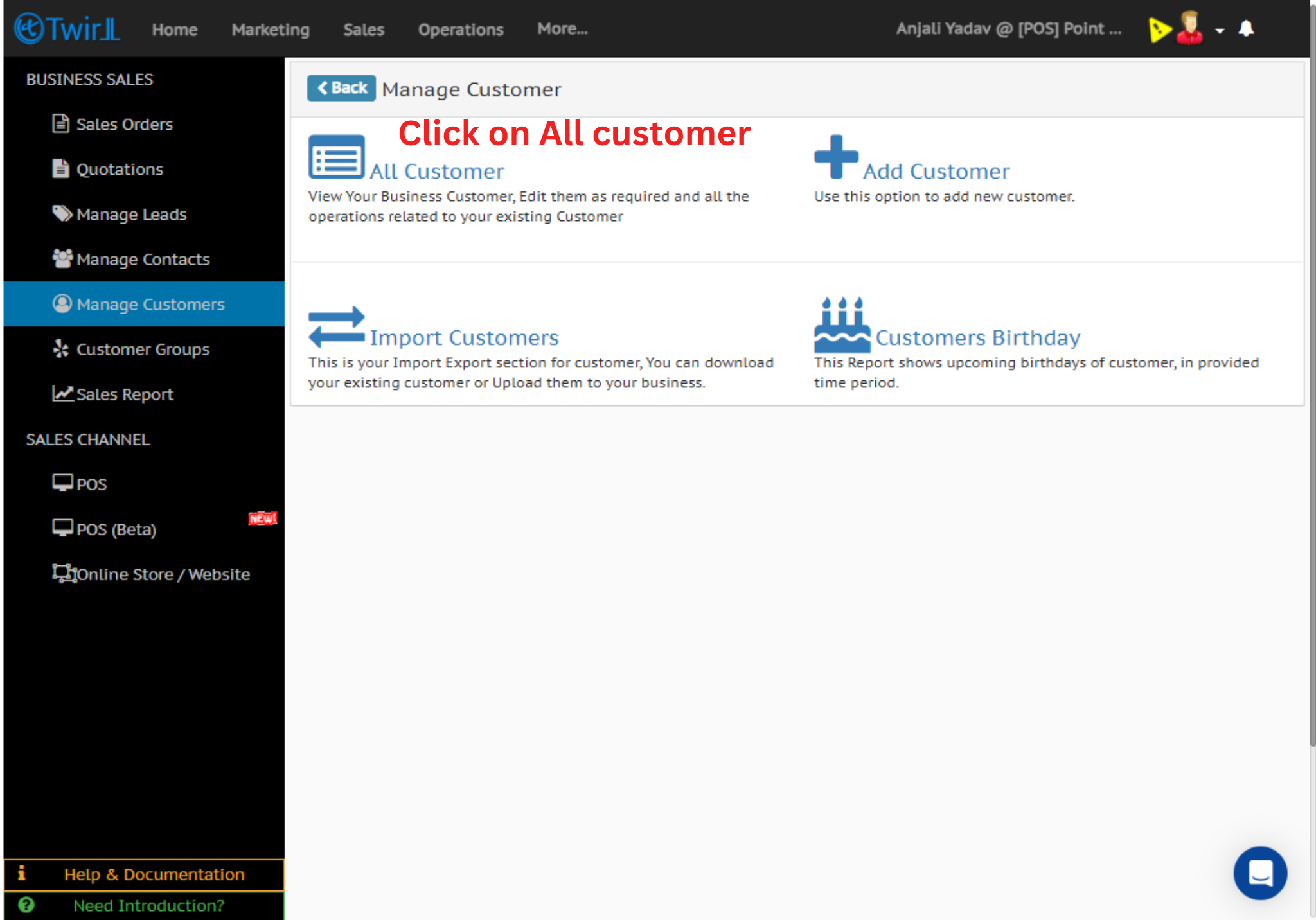
To communicate with a registered customer, navigate to Sales → Manage Customers → All Customers.
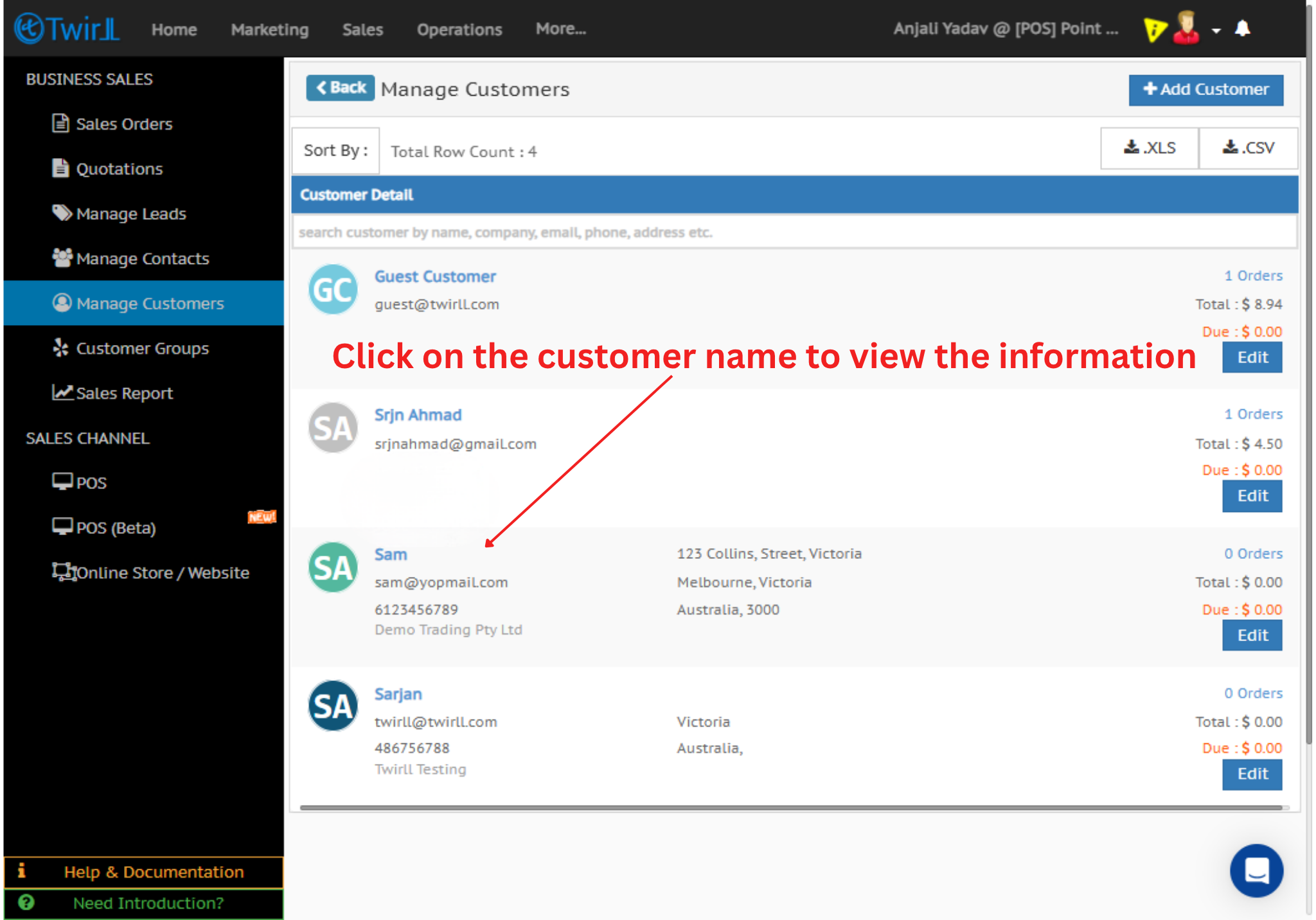
Step 1: Search for the customer and click on their name.
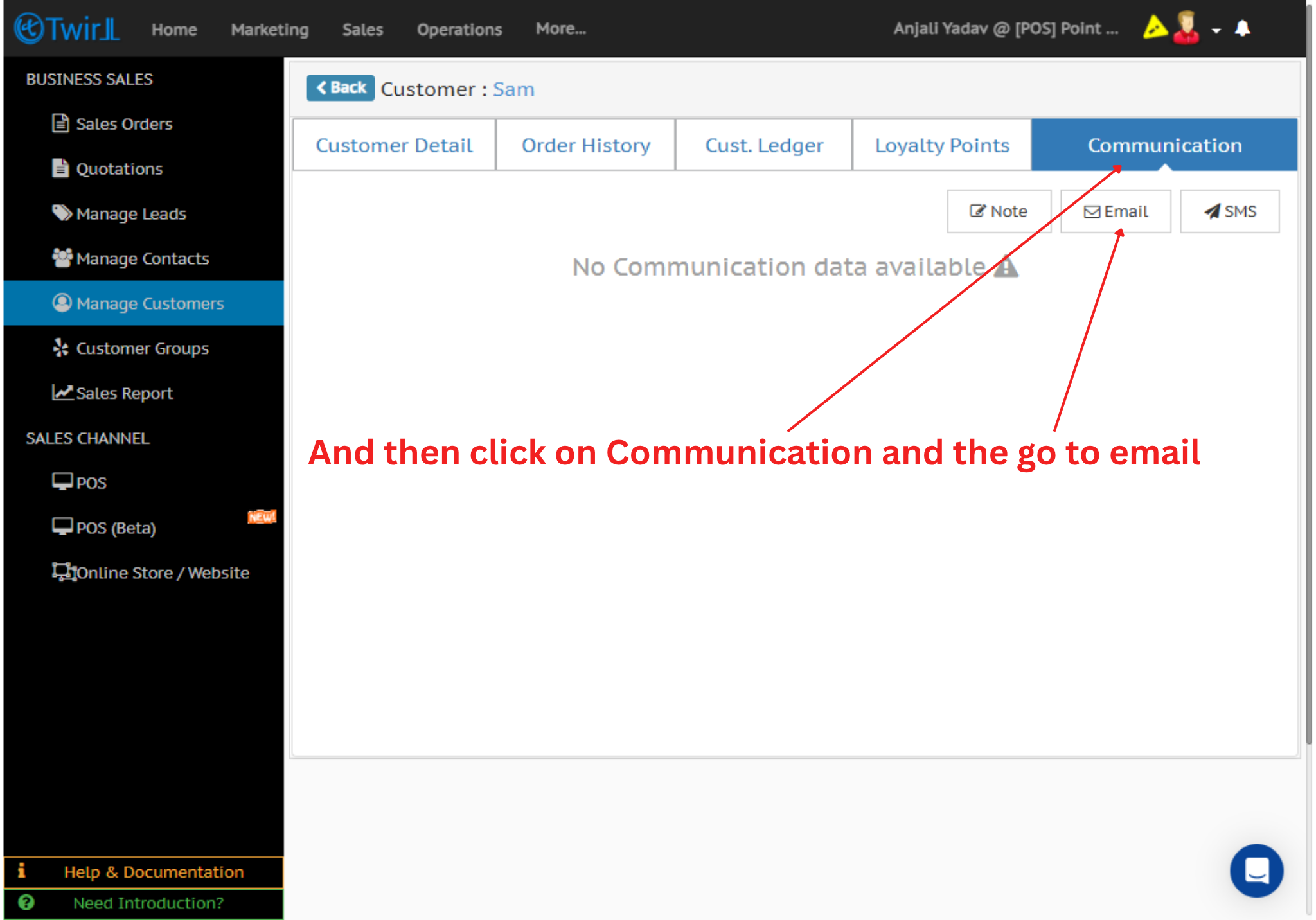
Step 2: Open the Communication tab and select Email.
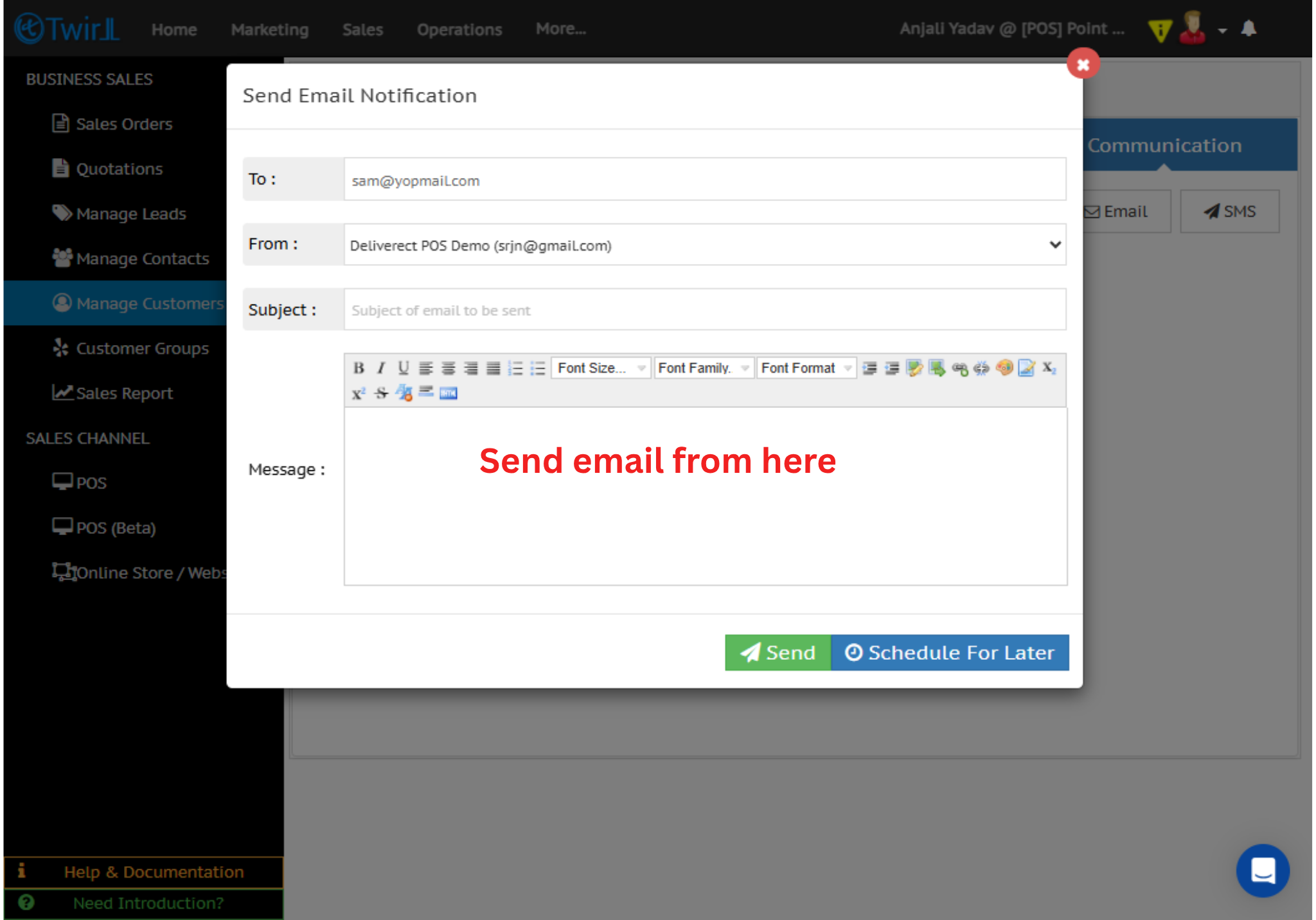
Step 3: Compose and send an email to welcome the customer or notify them that their registration has been successfully completed.
Search for the customer and click on their name.
Open the Communication tab and select Email.
Compose and send an email to welcome the customer or notify them that their registration has been successfully completed.