
This SOP explains how to upload and update item images in OneClick through OpsGenie. It guides a team member from locating the managed item to saving and verifying the updated images.
You can always add latest pictures to you products to keep it updated. to add a picture to your product, follow below process
Step 1: Log in to the Twirll Portal → Go to Operations → Select Manage Item → Click on Manage Item Images
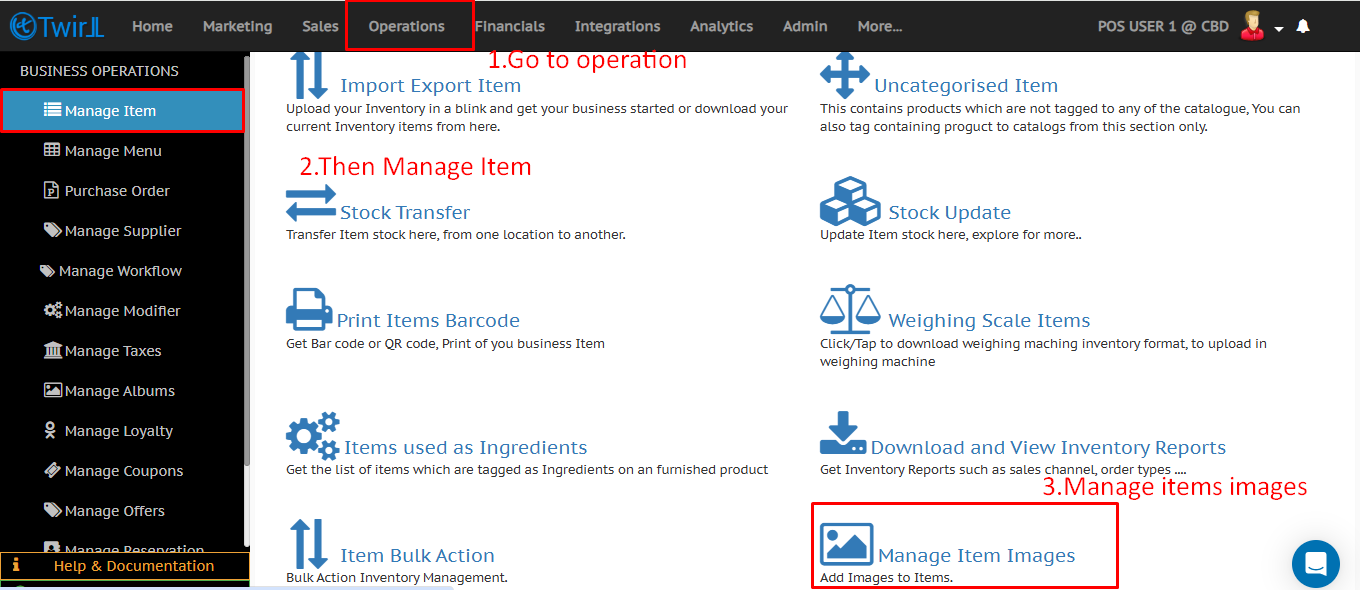
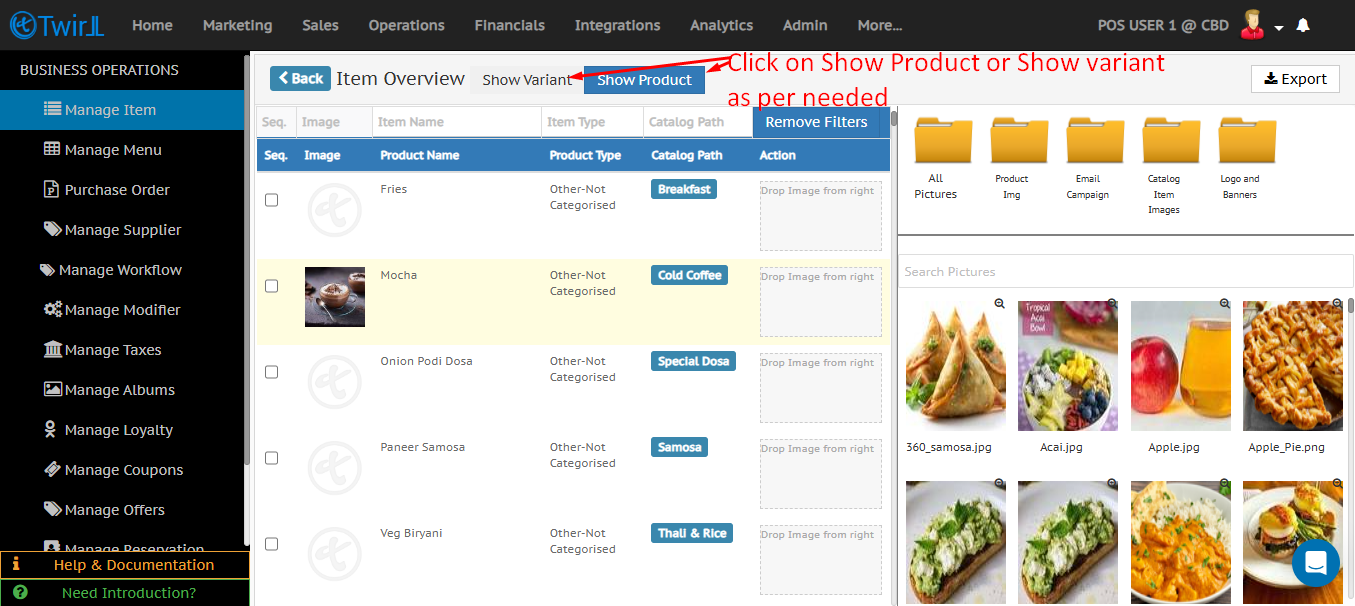
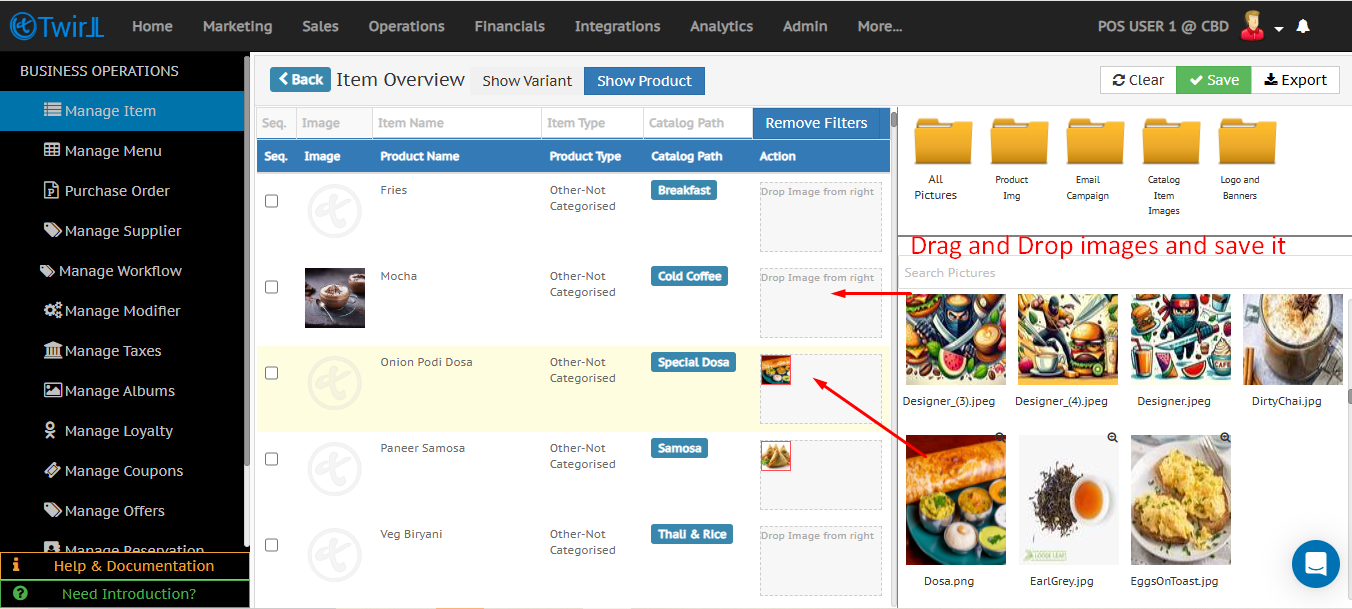
Step 2: Click on Show Product. You can drag and drop images directly and save the changes.
-
This section displays a list of all products where you can tag images to each product.
-
Click on Show Variant to view all variants and tag images to specific variants as needed
-
- It’s recommended to keep the photo name the same as the product name to make tagging photos in bulk easier and prevent incorrect pictures.
- Search made easy: Keeping the photos name same/similar to product name can ease the search while tagging a long list of photos and items. You can also search via image name this will show the filtered results of items and photos.
- Simply drag and drop the photos to the desired item/product and save it.
Related documents :
How to add images to Twirll Portal
Tag images to Variants
How to tag individual item images