Keeping product images updated helps maintain a fresh and attractive catalog. Twirll allows you to upload images in two ways:
You can upload images from:
-
Media Library (previously uploaded images)
-
Your device storage (laptop/desktop)
Follow the steps below to upload or update images for any product
Step 1: Go to Item Overview
Navigate to: Operations → Manage Inventory → Item Overview

Step 2: Click on the item/product for which you want to upload or update the image.
Step 3: Click on the default image or blank placeholder to open the image.

Option 1: Upload Image from Media Library
When the image upload modal opens, you will see:
Media Library (#1):-View all previously uploaded images in your system.
Select Image (#2):-Choose one or multiple images you want to attach to the product.
Confirm Selection (#3):-Click Select Image to confirm your selection.
You can also upload new images through Manage Albums if required.

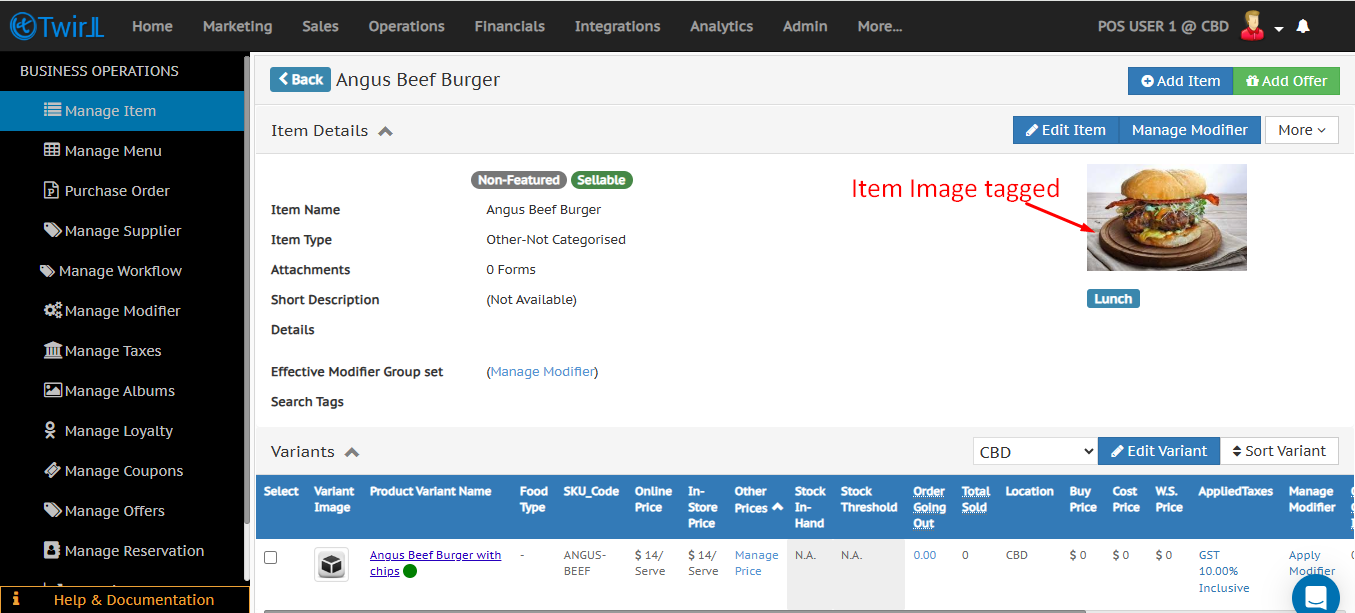
Step 4: After confirming your selection, the images will be tagged to the item.
Option 2: Upload Image from Device Storage
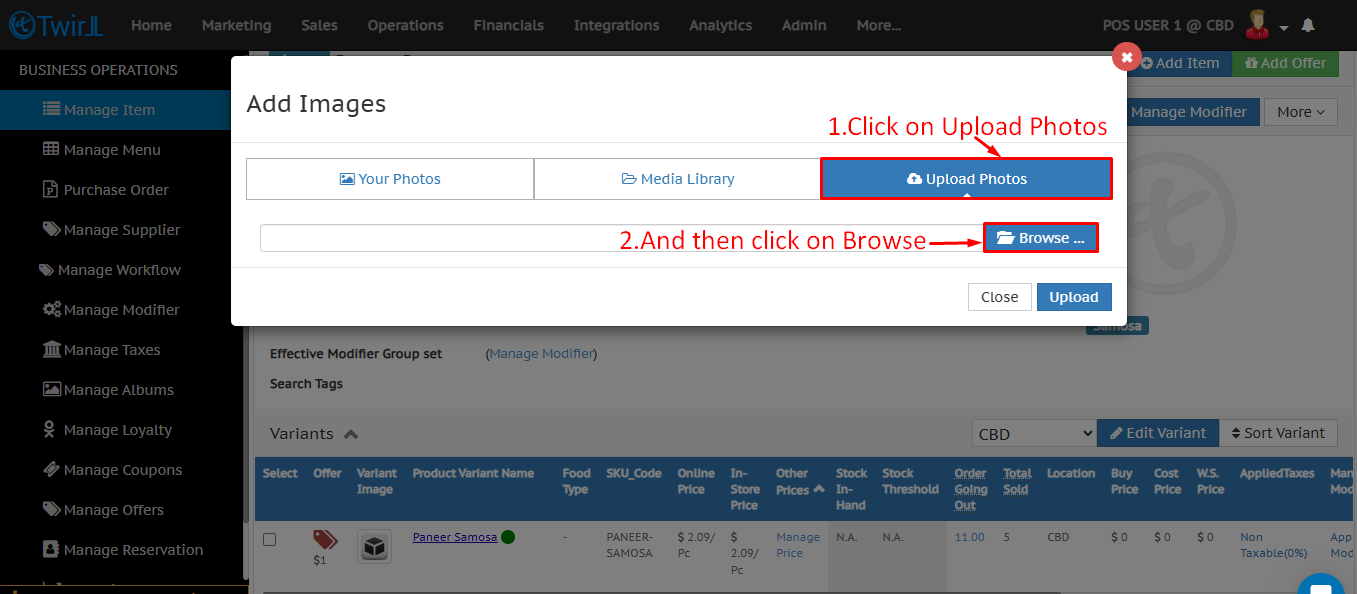
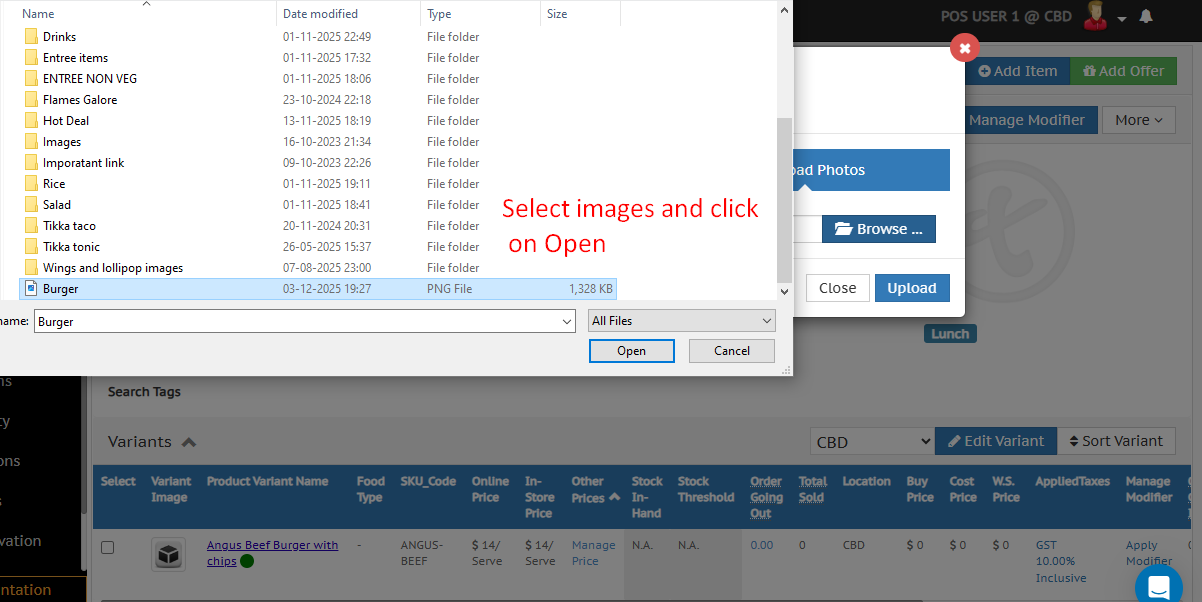
Step 1: Click Upload Photos, Then click Browse to upload an image from your laptop.
Step 2: Select the image from your computer
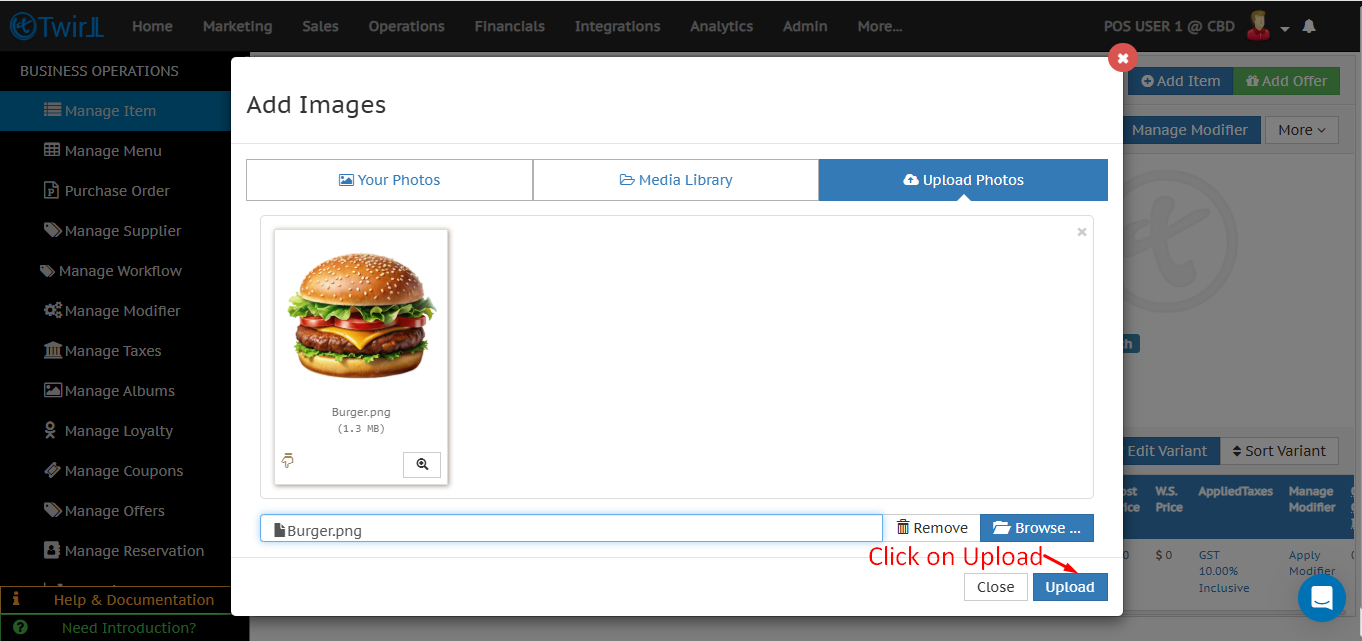
Step 3: Click on upload
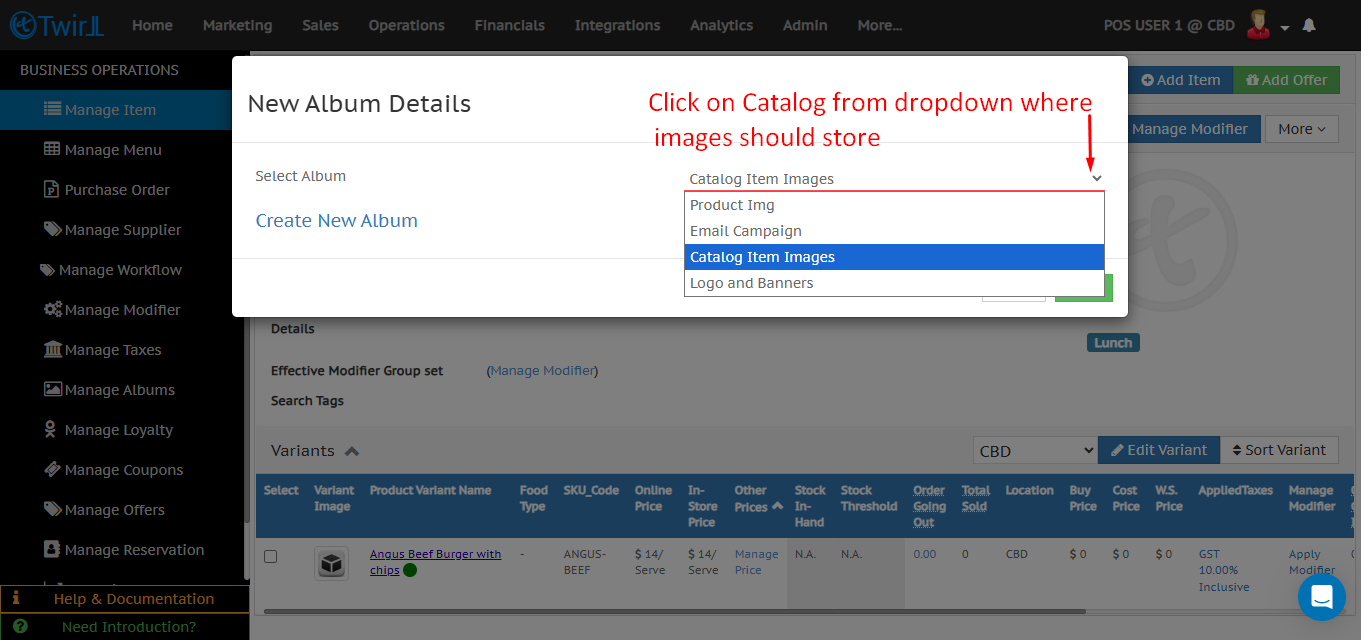
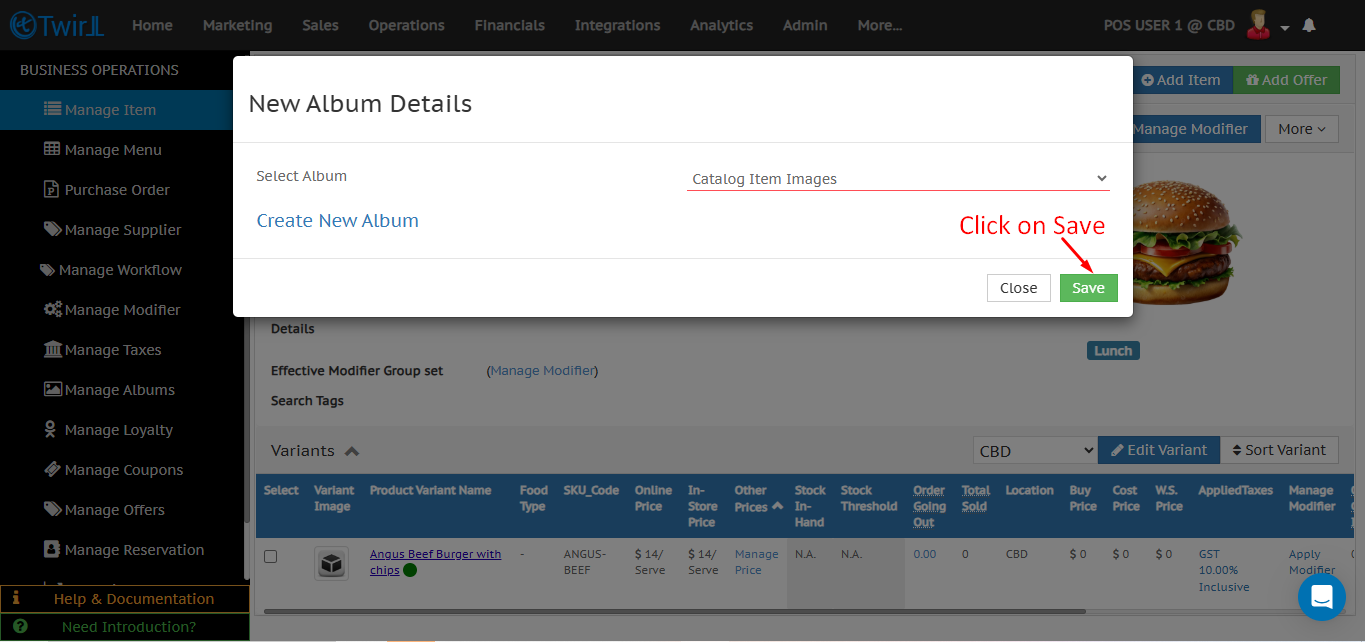
Step 4: Choose Category & Save, Select the appropriate category name from the dropdown to store the image and click Save.