
Create a Device in the Twirll Portal
Step 1:- Login to the Twirll Portal
Steap 2:- Navigate to the Manage IOT Device section
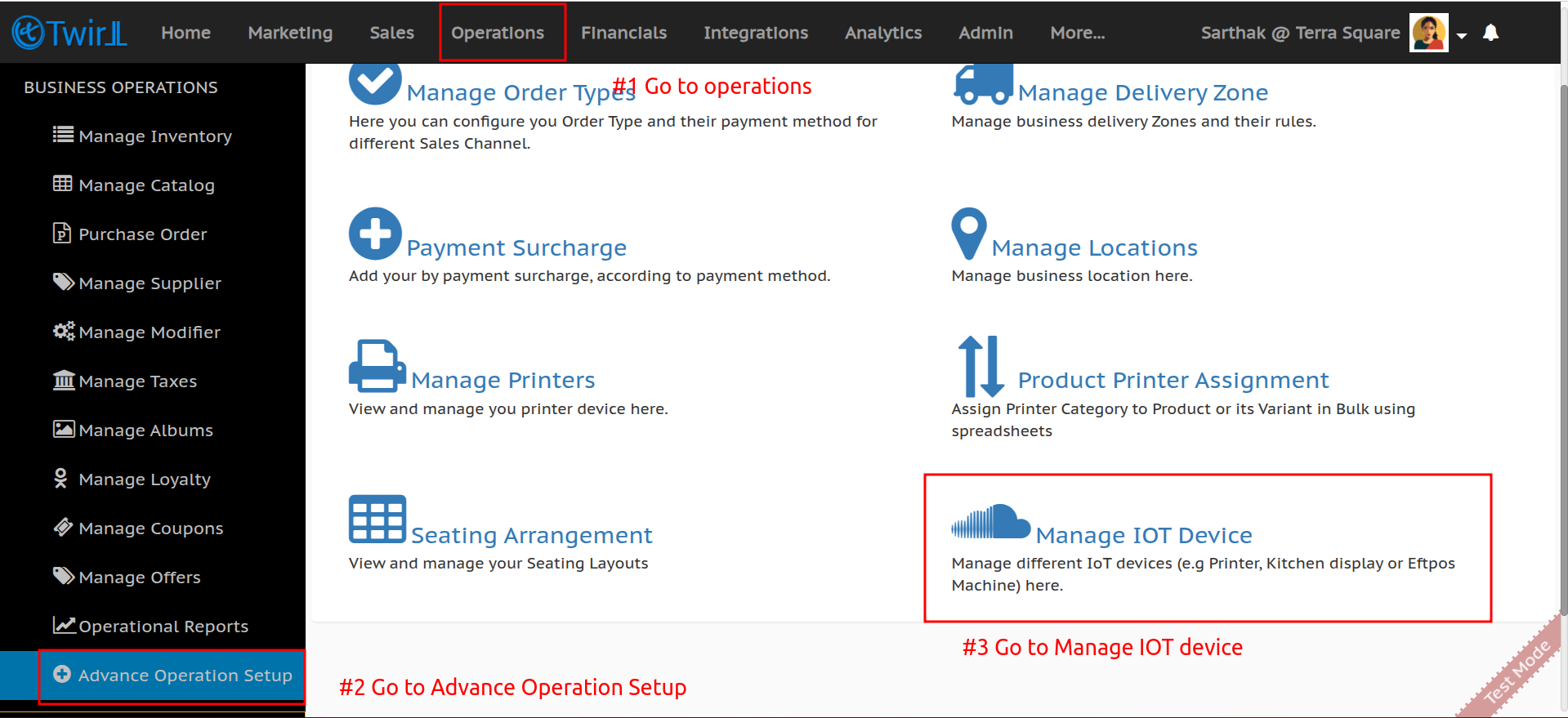
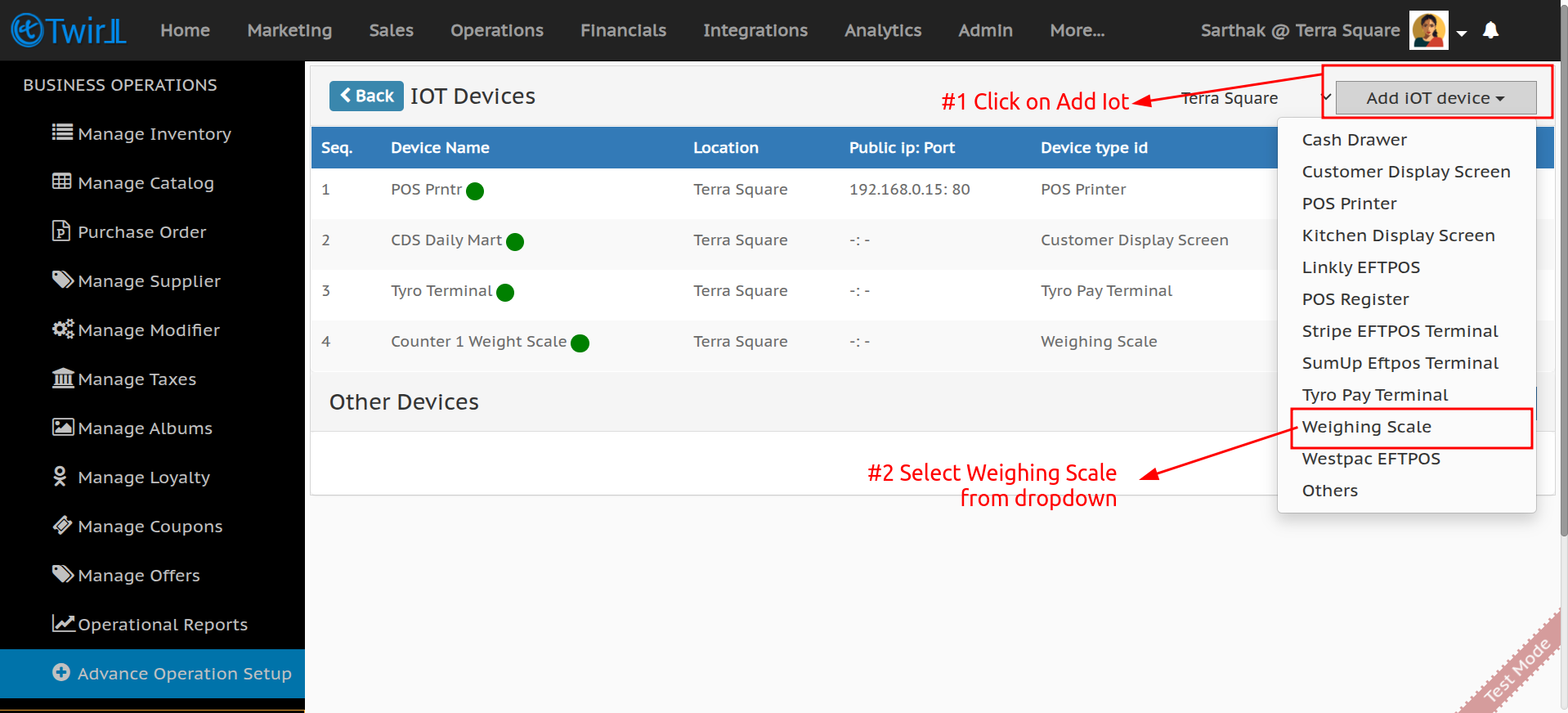
Step 3:- Click on Add Device.
Step 4:- Select Weight Scale as the device type.
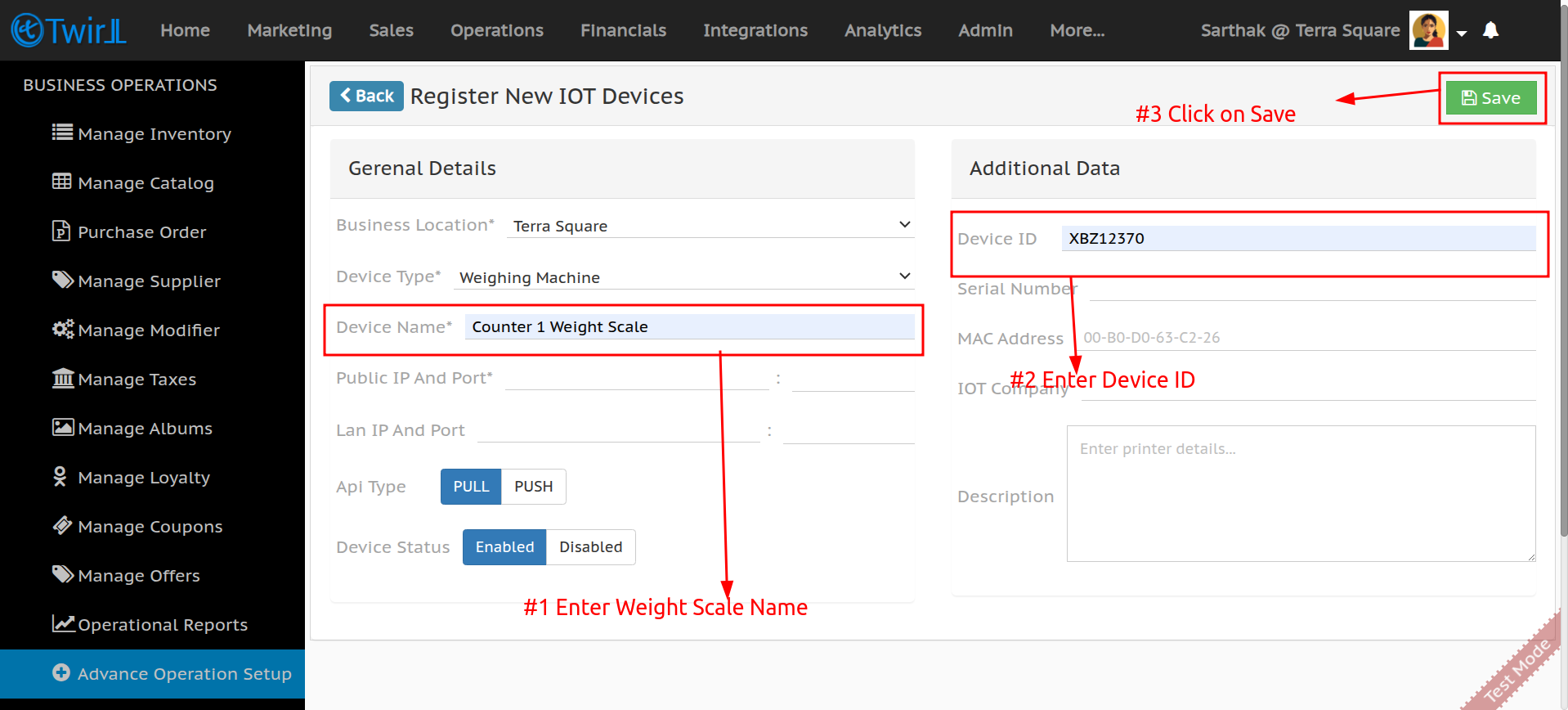
Step 5:- Enter the required details, such as device name and location.
Step 6:- Save the device configuration.
Enable Integration In Weight Scale
Step 1:- Ensure the CAS Weight Scale is powered off.
Step 2:- While pressing the ZERO key, turn on the power switch.
Step 3:- The display will show U SEt (Setup Mode).
Step 4:- Press the ZERO key to navigate through the menu options.
Step 5:- Select the RS232 Communication Mode by locating r ECr on the display.
Step 6:- Press the TARE key to modify the settings.
Step 7:- Choose ECR Type 4 by selecting .typ 04.
Step 8:- Press the ZERO key to save the setting and move to the next mode.
Connect the Weight Scale to POS
Step 1:- Connect the CAS Weight Scale to the POS system using the USB or RS232
Step 2:- Navigate to the Settings menu in the POS system.
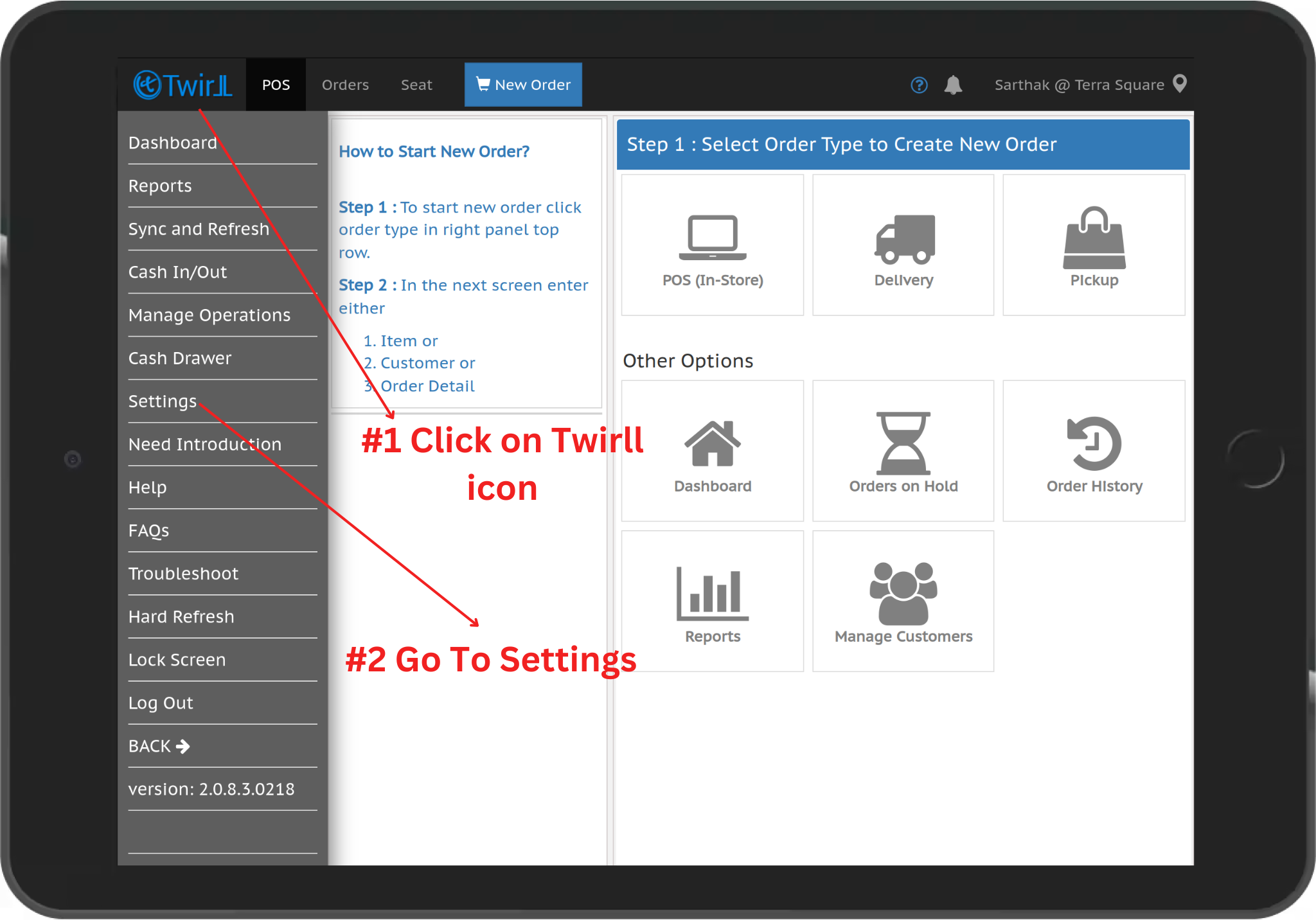
Step 3:- Enable Weight Scale Integration.
Step 4:- Select the CAS Weight Scale from the dropdown list.
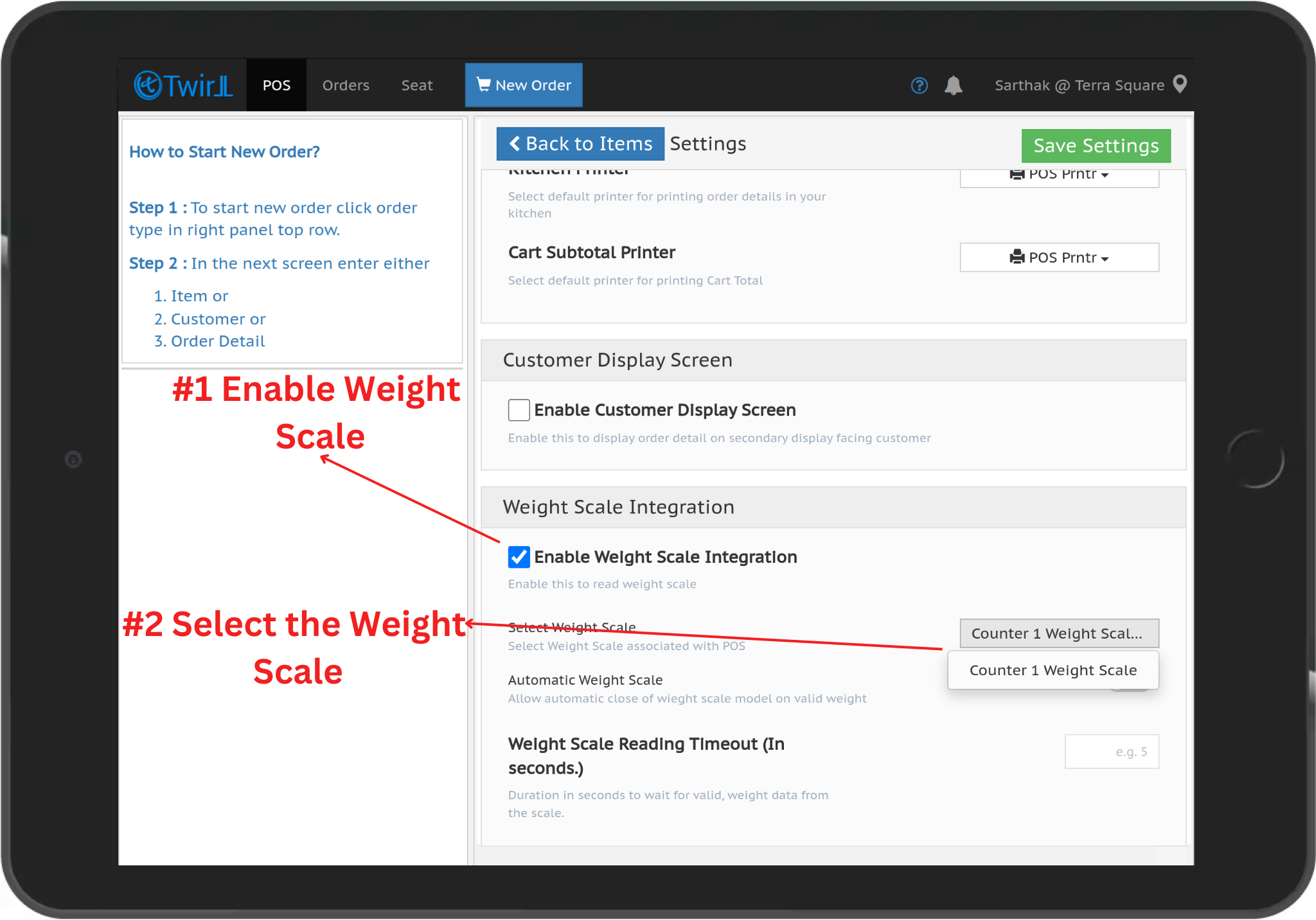
Step 5:- Weight Scale gets connected to the pos